 Auto History Wipe
How to Clear Your Browser Cache (Chrome, Edge & Firefox)
Published August 21, 2026
If a website looks broken, won’t update, or loads an old version of a page, the fix is almost always the same: clear browser cache. The cache is one of the most useful — and most misunderstood — parts of your browser, and clearing it takes about ten seconds once you know where to look. Here’s how to do it in Chrome, Edge and Firefox, when it’s worth doing, and how to make it happen automatically.
What the cache actually is
Your browser’s cache is a folder of temporary files — images, stylesheets and scripts — saved so pages don’t have to re-download the same assets on every visit. It exists purely for speed. The downside is that a stale cache can keep serving you an old copy of a page, which is why “clear the cache” is the classic first step whenever something looks off. Clearing it doesn’t delete your passwords, bookmarks or history — it only throws away those temporary copies.
How to clear your browser cache in Chrome
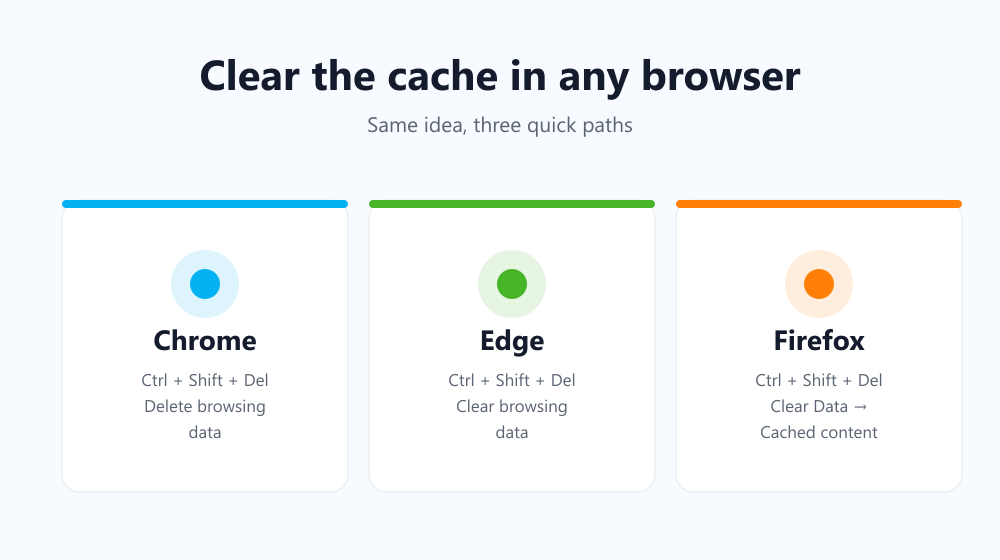
In Chrome, press Ctrl+Shift+Delete (Cmd+Shift+Delete on Mac), or go to Settings → Privacy and security → Delete browsing data. Choose a time range, tick Cached images and files, and confirm. That’s all it takes.
How to clear the cache in Microsoft Edge
Edge uses the same shortcut, Ctrl+Shift+Delete. Or open Settings → Privacy, search, and services → Clear browsing data, tick Cached images and files, and clear. Because Edge is built on the same engine as Chrome, the steps feel almost identical.
How to clear the cache in Firefox
In Firefox, press Ctrl+Shift+Delete or go to Settings → Privacy & Security → Cookies and Site Data → Clear Data, tick Cached Web Content, and confirm.
The shortcut for every browser
| Browser | Shortcut | Menu path |
|---|---|---|
| Chrome | Ctrl+Shift+Delete | Privacy and security → Delete browsing data |
| Edge | Ctrl+Shift+Delete | Privacy, search, and services → Clear browsing data |
| Firefox | Ctrl+Shift+Delete | Privacy & Security → Clear Data |
When should you clear the cache?
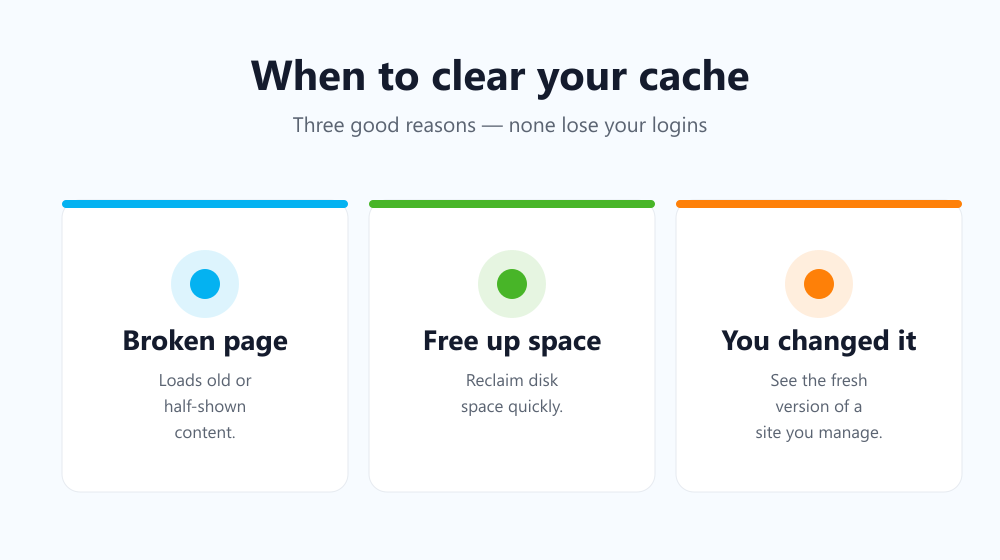
You don’t need to clear the cache constantly — it’s doing a useful job. Clear it when:
- A page looks broken, half-loaded, or refuses to show a recent update.
- You’re running low on disk space and want to reclaim some quickly.
- You’ve just changed something on a website you manage and need to see it fresh.
Clear it automatically instead
Doing this by hand every time gets old fast. A lightweight extension like Auto History Wipe can clear your cache — along with history, cookies and downloads — on startup, on a schedule, or with one click. If you want the full walkthrough, see how to delete your browsing history automatically.
Frequently asked questions
Does clearing the cache delete my passwords?
No. Passwords, bookmarks and autofill are stored separately. Clearing the cache only removes temporary page files, so you stay logged in and keep everything you’ve saved.
Will clearing the cache make my browser faster?
Not immediately — the next visit to each site is slightly slower while the cache rebuilds. Over time a fresh cache can feel snappier and fixes odd display glitches.
How often should I clear browser cache?
For most people, only when something looks wrong or space is tight. If you’d rather keep it tidy without thinking, set it to clear automatically.
Is it safe to clear the cache?
Completely. The cache only holds disposable copies of files your browser can re-download at any time, so clearing it never risks your accounts, saved passwords or settings — the worst that happens is one slightly slower page load.
Clearing the cache is a small habit that fixes a surprising number of everyday browser annoyances. Do it by hand when you need to — or let it happen automatically and forget about it entirely.