 Auto History Wipe
How to Delete Browsing History in Chrome Automatically
Written by Jem Jack · Published August 18, 2026
Clearing your history by hand works, but doing it every single day is the part everyone forgets. The reliable fix is to delete browsing history automatically, so Chrome cleans itself on your schedule and your browsing stays private without you thinking about it. Here’s how to set it up, what actually gets removed, and which approach fits you best.
Does Chrome delete history by itself?
Not deliberately — but browsing history does vanish on its own more often than people expect, and there are five ordinary explanations worth checking before you assume something is wrong.
Chrome only keeps about 90 days of history locally. The browser prunes entries older than roughly three months from its own database. If you went looking for a page you visited last spring and it is simply not there, this is almost always the reason.
Your Google account may be deleting it for you. If Web & App Activity is switched on, it carries an auto-delete setting — 3, 18 or 36 months — and newer accounts default to 18 months. It runs quietly in the background, and it takes synced history with it.
Sync spreads a clean-up to every device. Clearing history on your phone clears it on your laptop as well, if both are signed in with sync enabled. It is easy to tidy up one device and forget the others are listening.
You may be looking at a different profile. History is stored per Chrome profile, so a second profile, a work account or a guest window each keeps its own — and Incognito windows never record anything in the first place.
Something else may be clearing it. A cleanup utility, an antivirus suite, or another extension holding browsing-data permission can wipe history on a schedule you set once and then forgot about.
So Chrome does not erase your history spontaneously. But between the 90-day limit, account-level auto-delete and sync, it can certainly look that way — and none of those give you any control over when it happens. If you would rather it were deliberate, on a schedule you choose, that is what the rest of this guide covers.
The manual way — and why it never sticks
You already know the routine: open Settings → Privacy and security → Delete browsing data, pick a time range, tick what to clear, and confirm. It works once. The problem is that it depends on you remembering, and most people don’t — so weeks of history, cache and cookies quietly pile up between clean-ups. Anything you do “when you get around to it” is exactly the thing that never happens.
How to delete browsing history automatically
To delete browsing history automatically you have two realistic options: Chrome’s own built-in setting, or a dedicated extension that does the whole job for you.
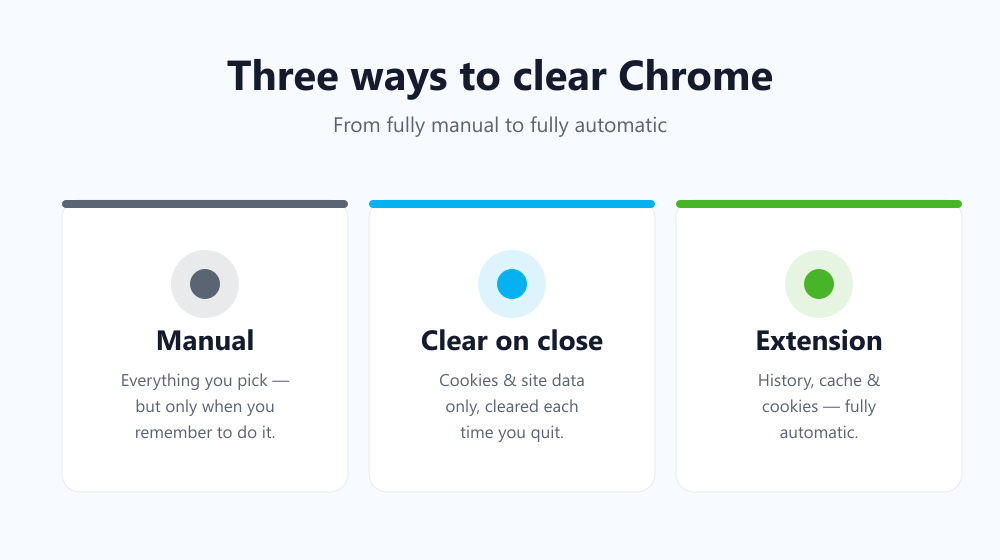
Chrome can clear cookies and site data every time you close all windows. Go to Settings → Privacy and security → Third-party cookies and turn on “Clear cookies and site data when you close all windows”. It’s a good start, but notice what it covers: only cookies and site data — not your full history or your cache.
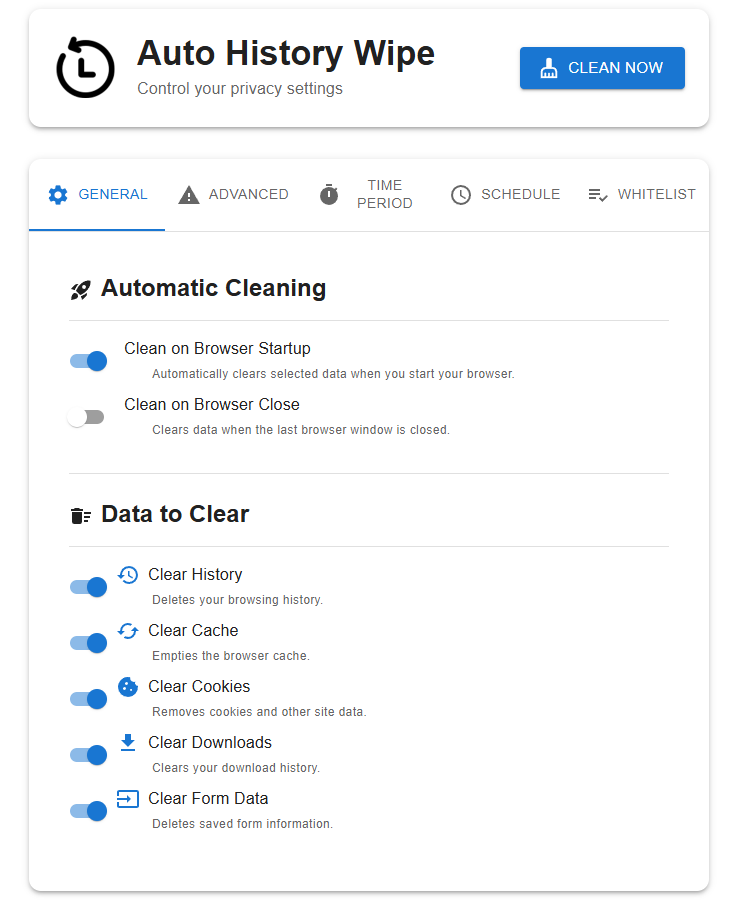
For a complete, hands-off clean-up, a lightweight extension like Auto History Wipe can delete browsing history, cache and cookies on startup, on a timer, or with a single click — covering everything the native toggle leaves behind.
Which method should you use?
Each approach trades effort for control. This table sums up the practical differences:
| Method | What it clears | Effort | Best for |
|---|---|---|---|
| Manual “Delete browsing data” | Everything you select | High — every time | An occasional deep clean |
| Chrome “clear on close” | Cookies + site data only | None after setup | Staying logged out |
| Auto History Wipe extension | History, cache and cookies | None after setup | Fully automatic privacy |
What gets cleared — and what doesn’t
When you delete browsing history automatically, Chrome removes the local record stored on your device: the pages you visited, cached files, and the cookies you choose to include. What it does not do is hide your activity from your internet provider, your employer’s network, or the websites themselves — that needs a VPN or private DNS, which is a separate layer entirely. Automatic clearing is about keeping your device tidy and private, not about becoming invisible online. Set expectations correctly and you’ll get exactly what this feature is great at.
Frequently asked questions
Will deleting my history log me out of websites?
Only if you also clear cookies. History on its own is just a visit log, so removing it won’t sign you out. If you include cookies in the automatic clean-up you will be signed out of sites — which, for a shared or public computer, is usually what you want.
Does automatic clearing slow Chrome down?
No. Emptying the cache can make the very next page load slightly slower once, because assets are re-downloaded, but day to day there is no performance penalty — and a smaller cache can even feel snappier.
Can I clear history automatically on mobile?
Chrome on Android and iOS doesn’t offer true scheduled clearing yet. You can enable “clear cookies on close” and clear history by hand, but full automation is a desktop feature today.
Does this remove my saved passwords or bookmarks?
No. Saved passwords, autofill entries and bookmarks are stored separately and are never touched when history, cache or cookies are cleared — so you won’t lose the logins you’ve saved or the sites you’ve bookmarked. You stay in control of what gets removed and what stays.
Quick recap
- Chrome’s built-in setting only clears cookies on close — not your history or cache.
- A dedicated extension clears history, cache and cookies together, automatically.
- Automatic clearing keeps your device private; it doesn’t make you anonymous online.
Once it’s set up you never think about it again — your browser simply stays clean, every session, with zero effort on your part. If you want to understand exactly what you’re removing and why each type of data matters, read Cookies vs. Cache vs. History next.