 Auto History Wipe
Cookies vs Cache vs History: What’s the Difference?
Published August 18, 2026
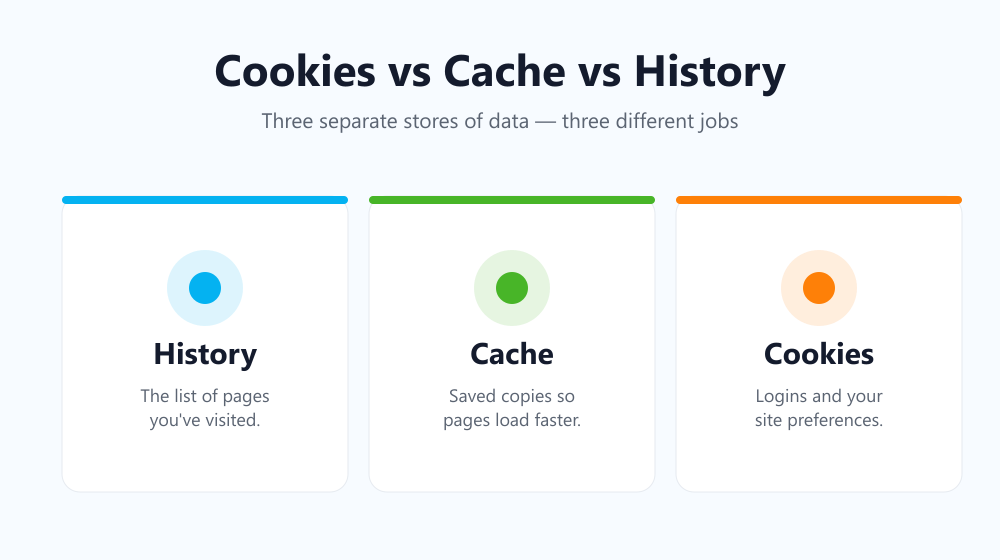
“Clear your cookies.” “Empty your cache.” “Delete your history.” People throw these phrases around as if they mean the same thing — but understanding cookies vs cache vs history is the key to knowing what is actually safe to clear. They are three separate stores of data, each doing a very different job, and mixing them up is why people either wipe too much or too little.
Browsing history: the list of where you’ve been
Your history is simply a record of the pages you have visited — the URLs, page titles and timestamps. It powers the address-bar autocomplete and the “back through time” list. It does not make sites load faster and it does not keep you logged in; it is purely a log of your activity. Clearing it removes that trail from your device, which is what most people mean when they say they want privacy.
Cache: saved copies so pages load faster
The cache is a folder of temporary files — images, stylesheets, scripts — that your browser keeps so it does not have to re-download the same assets every visit. It is a performance feature, not a tracking one. A stale cache is the usual culprit when a page looks broken or refuses to update; clearing it forces a fresh copy — the same fix Google’s own support docs recommend for display glitches. The trade-off is that the next visit to each site is slightly slower while the cache rebuilds itself.
Cookies: the little files that remember you
Cookies are small text files a site stores to remember things between visits: that you are logged in, what is in your basket, your language, and — less welcomely — your behaviour for advertising. First-party cookies make sites usable; third-party cookies are the ones that follow you around the web. Clearing cookies signs you out of sites and wipes those preferences, which is often exactly the point on a shared computer.
Cookies vs cache vs history at a glance
Here is the whole picture in one table:
| Data type | What it stores | Clearing it means |
|---|---|---|
| History | Pages you’ve visited | The visit trail is gone |
| Cache | Temporary copies of page files | Pages reload fresh (once slower) |
| Cookies | Logins and site preferences | You’re signed out of sites |
So what should you actually clear?
Once you see cookies vs cache vs history as three independent decisions, the choice gets easy:
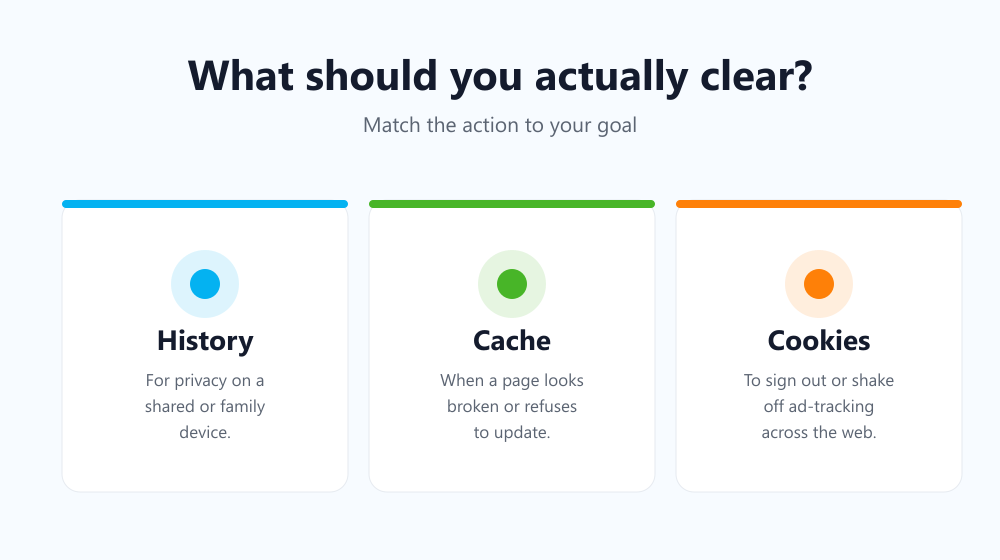
- History — clear it for privacy on a shared or family device.
- Cache — clear it when a page is misbehaving or you want to free up space.
- Cookies — clear them when you want to sign out everywhere or shake off ad tracking.
And if you would rather not think about any of it, you can delete all three automatically on a schedule.
Frequently asked questions
Does clearing the cache log me out?
No — logins live in cookies, not the cache. You can safely empty the cache to fix a broken page without losing a single session.
Will clearing history speed up my browser?
Not really. History is a tiny log. If anything slows the browser down it is usually a bloated cache or too many extensions, not your list of visited pages.
Are cookies dangerous?
First-party cookies are harmless and useful. The privacy concern is third-party tracking cookies, which most browsers now block by default and which clearing removes entirely.
How often should I clear all three?
For most people, monthly is plenty for cache and cookies, while history is down to personal preference. On a shared or public computer, clearing everything at the end of each session is the safer habit — and that is exactly the kind of repetitive routine worth handing off to an automatic tool rather than doing by memory.
Will clearing cookies remove my saved passwords?
No. Saved passwords are stored in a separate password manager inside the browser, not in cookies. Clearing cookies signs you out of active sessions, but your saved logins stay ready for the next time you sign in.
Knowing the difference means you clear exactly what you intend to — nothing more, nothing less. Ready to put it on autopilot? See how to delete your history automatically.