 Auto History Wipe
How to Delete Cookies in Your Browser — and Why You Should
Published August 24, 2026
Cookies quietly pile up as you browse — some keep you logged in, others follow you around the web to build an advertising profile. Learning to delete cookies puts you back in control: it signs you out of sites, wipes stored preferences, and clears the trackers that shadow you across the internet. Here’s how to do it in every major browser, what actually happens when you do, and how to keep it automatic.
What cookies really are
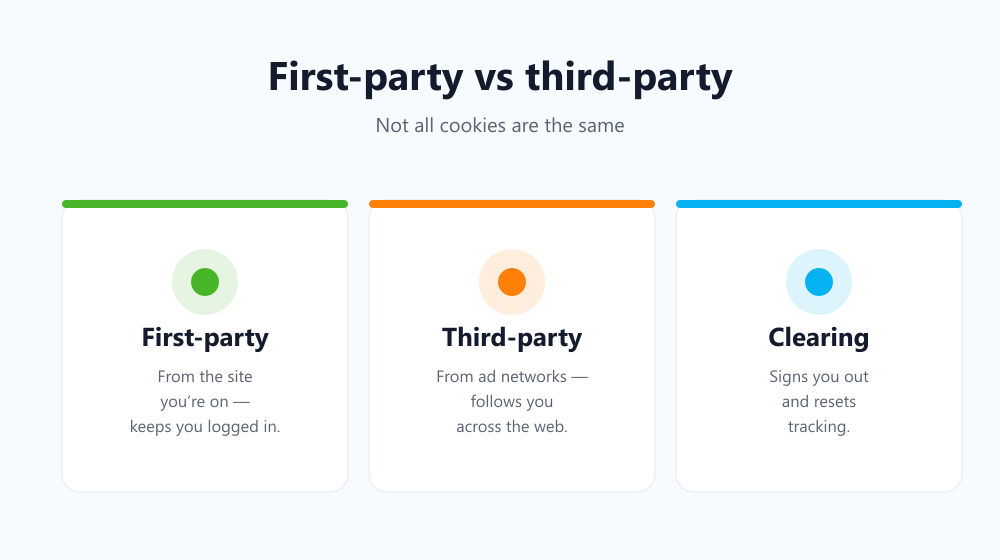
A cookie is a small text file a website saves in your browser to remember something between visits — that you’re signed in, what’s in your basket, your language. First-party cookies come from the site you’re on and make it usable. Third-party cookies come from other domains (usually ad networks) and are the ones that track you. When you delete cookies you clear both, which is exactly why it’s such a useful privacy habit.
How to delete cookies in Chrome
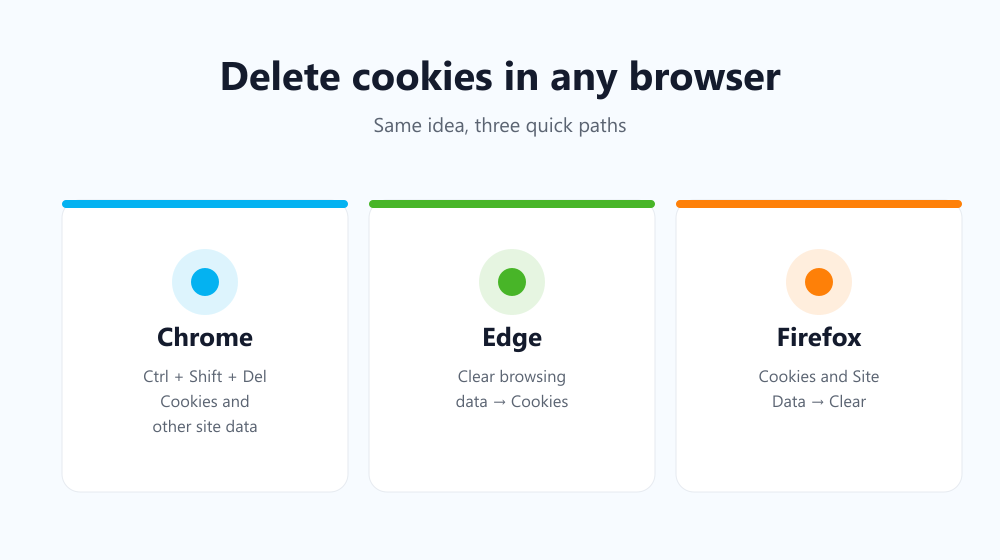
Press Ctrl+Shift+Delete, or open Settings → Privacy and security → Cookies and other site data. Choose Cookies and other site data, pick a time range, and confirm. You can also block third-party cookies here to cut tracking going forward.
Remove cookies for a single site
You don’t always have to wipe everything. If one site is misbehaving — a login loop, a stuck banner, a checkout that won’t proceed — you can remove just its cookies and leave the rest alone. In Chrome, open Settings → Privacy and security → Cookies and other site data → See all site data and permissions, search for the site, and clear it. Firefox and Edge have the same per-site controls. This keeps you logged in everywhere else while fixing the one site that’s broken, and it’s often all a stubborn page needs to start behaving again. It’s the surgical option when a full reset would be overkill.
How to clear cookies in Edge and Firefox
In Edge, use Ctrl+Shift+Delete or Settings → Privacy, search, and services → Clear browsing data and tick Cookies and other site data. In Firefox, go to Settings → Privacy & Security → Cookies and Site Data → Clear Data. Every browser lets you clear everything at once or manage cookies site by site.
What happens when you delete cookies
| You’ll notice | What it means |
|---|---|
| Signed out of sites | Login cookies are gone — just sign back in |
| Preferences reset | Language, theme and “accept cookies” choices clear |
| Less targeted ads | Tracking cookies that profiled you are wiped |
When to clear your cookies
You don’t need to do it daily, but it’s worth clearing cookies when you:
- Share a computer and want to sign out of everything at once.
- Feel like ads are following you around after a single search.
- Hit a login loop or a site that won’t load correctly.
Clear cookies automatically
Clearing them by hand is easy to forget. A lightweight tool like Auto History Wipe can delete cookies — plus history, cache and downloads — on startup, on a timer, or with one click. For the full routine, see how to clear your browsing data automatically.
Frequently asked questions
Will deleting cookies log me out of everything?
Yes — login sessions live in cookies, so you’ll be signed out of sites and will need to log back in. On a shared computer that’s usually the goal.
Do I lose my passwords when I delete cookies?
No. Saved passwords are stored separately from cookies, so they stay put. You only lose the active sessions, not your saved logins.
Is it safe to delete cookies?
Completely. Sites simply recreate the cookies they need next time you visit. The only trade-off is re-entering logins and preferences once.
Clearing cookies is one of the simplest ways to reset your privacy and shake off trackers. Do it by hand when you need a fresh start — or let it run automatically and keep your browser clean without a second thought.