 Auto History Wipe
How to Clear History and Cache on Microsoft Edge
Written by Jem Jack · Published September 14, 2026
Microsoft Edge keeps a detailed record of everything you browse, but tidying it up takes seconds once you know where to look. Whether you want a one-time wipe or Edge to clean itself, this guide shows how to clear history on edge — including cache and cookies — and how to automate the whole thing.
The quick way to clear history on Edge
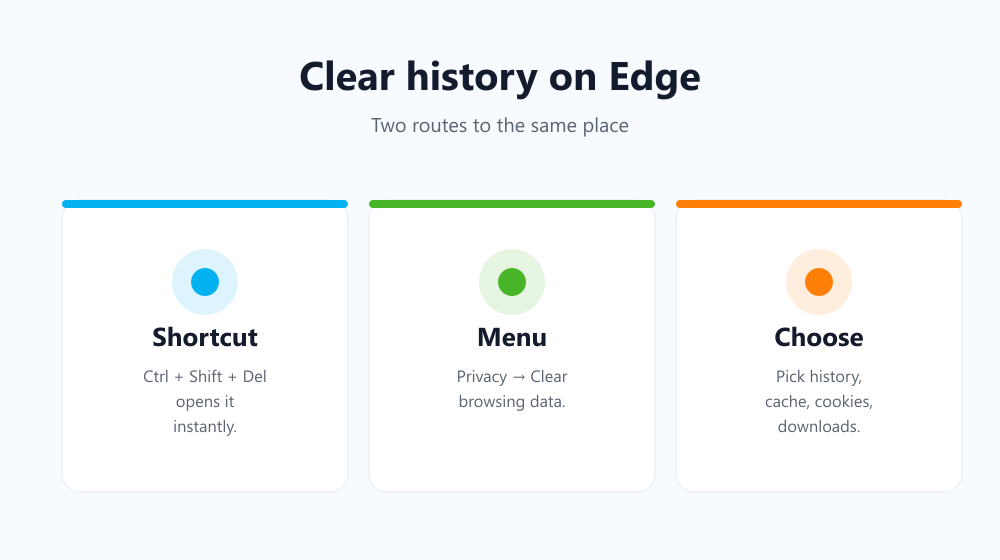
Press Ctrl+Shift+Delete to open the clear-data dialog instantly. Pick a time range, tick Browsing history (plus cached files and cookies if you want), and select Clear now. That’s the fastest route on any Edge window.
The menu route, step by step
Prefer menus? Go to Settings → Privacy, search, and services → Clear browsing data → Choose what to clear. Here you can select exactly what to remove — history, cache, cookies, downloads and more — then clear it.
What Edge lets you clear
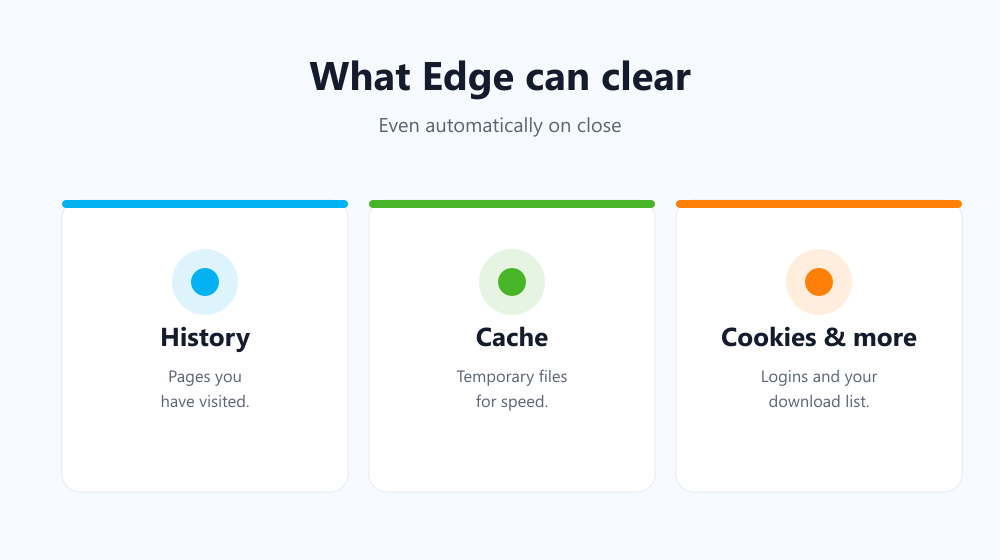
| Item | What it removes |
|---|---|
| Browsing history | Pages you’ve visited |
| Cached images & files | Temporary copies for speed |
| Cookies & site data | Logins and preferences |
| Download history | The list of files you’ve downloaded |
Make Edge clear history automatically
Edge can wipe your data every time you close it. Turn this on under Clear browsing data → Choose what to clear every time you close the browser. Good things to enable:
- Browsing history — so no trail survives a session.
- Cached files — to keep things tidy and free space.
- Cookies — if you want to start each session signed out.
One-click clearing across browsers
If you use more than one browser, doing this in each is tedious. Auto History Wipe brings the same automatic clean-up to Edge and beyond — history, cache, cookies and downloads on a schedule or one click. See how to clear history on exit for the full setup.
Edge on Android and iPhone
The mobile version of Edge keeps its own separate history, so clearing it on your computer won’t touch your phone. Open Edge on your device, tap the menu (…), then go to Settings → Privacy and security → Clear browsing data and choose what to remove. You can wipe history, cache and cookies here just like on desktop, and it’s worth doing on any phone you share. If you sign in to Edge with the same Microsoft account across devices, be aware that synced history can reappear unless you clear it everywhere or turn off history sync in your account settings. A quick clear on each device keeps everything consistent and your trail properly gone.
Frequently asked questions
How do I clear history on Edge with a keyboard shortcut?
Press Ctrl+Shift+Delete anywhere in Edge. The clear-data dialog opens straight away — pick what to remove and confirm.
Does clearing history on Edge remove my passwords?
No, unless you tick the Passwords box. History, cache and cookies are separate from your saved logins, which stay put.
Can Edge clear history automatically on close?
Yes. Unlike Chrome, Edge’s built-in “on close” option can clear history and cache, not just cookies — enable it in Clear browsing data settings.
Why does my Edge history come back after I clear it?
If you’re signed in to Edge and history sync is switched on, cleared history can quietly sync back from another device or the cloud. Clear it on every signed-in device, or turn off history sync in your Microsoft account settings, and it will stay gone for good this time rather than reappearing on your next visit.
Now you can tidy up Edge in seconds, choose exactly what goes, and even set it to clean itself on every close — so your browser stays private with almost no effort.