 Auto History Wipe
How to Delete Cookies for One Site (Chrome, Edge, Firefox)
Written by Jem Jack · Published September 28, 2026
Clearing all your cookies fixes a broken site, but it also signs you out of every other site you use. Most of the time you only need to delete cookies for one site: the shop with a stuck basket, the page that keeps showing an error, or the site you’d rather forgot you. Every major browser lets you do exactly that. Here’s how.
The fastest way: the padlock icon
While you’re on the site, click the icon to the left of the address, the padlock or “site information” button. From there:
- Chrome: choose Cookies and site data, then Manage on-device site data, and click the bin icon next to the site.
- Edge: choose Cookies (and site data) and remove the entries listed for that site.
- Firefox: choose Clear cookies and site data… and confirm.
Reload the page and the site treats you as a new visitor. Every other site keeps its cookies.
How to delete cookies for one site in Chrome settings
If you’re not on the site, or it won’t load at all, use Settings instead:
- Open Settings, then Privacy and security.
- Choose Third-party cookies (or Site settings), then See all site data and permissions.
- Search for the site’s name at the top right.
- Click the bin icon, then Delete to confirm.
These steps match Google’s own guide to managing cookies.
Edge and Firefox settings
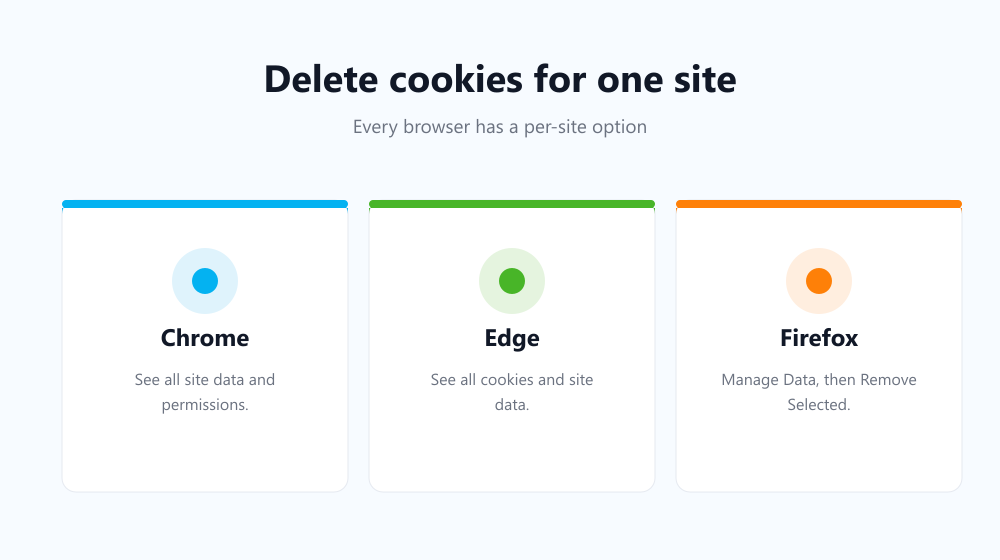
Edge: go to Settings, then Cookies and site permissions, then Manage and delete cookies and site data, then See all cookies and site data. Search for the site and click the bin icon.
Firefox: go to Settings, then Privacy & Security, then Cookies and Site Data, then Manage Data…. Search for the site, select it, click Remove Selected and save your changes.
Single site vs all cookies
| One site | All cookies | |
|---|---|---|
| Fixes that site’s login or basket problems | Yes | Yes |
| Keeps you signed in elsewhere | Yes | No |
| Resets advertising trackers | Only that site’s | All of them |
| Takes | About 20 seconds | About 10 seconds |
If you want a full reset instead, our guide on how to delete cookies covers every browser.
When a single-site reset helps
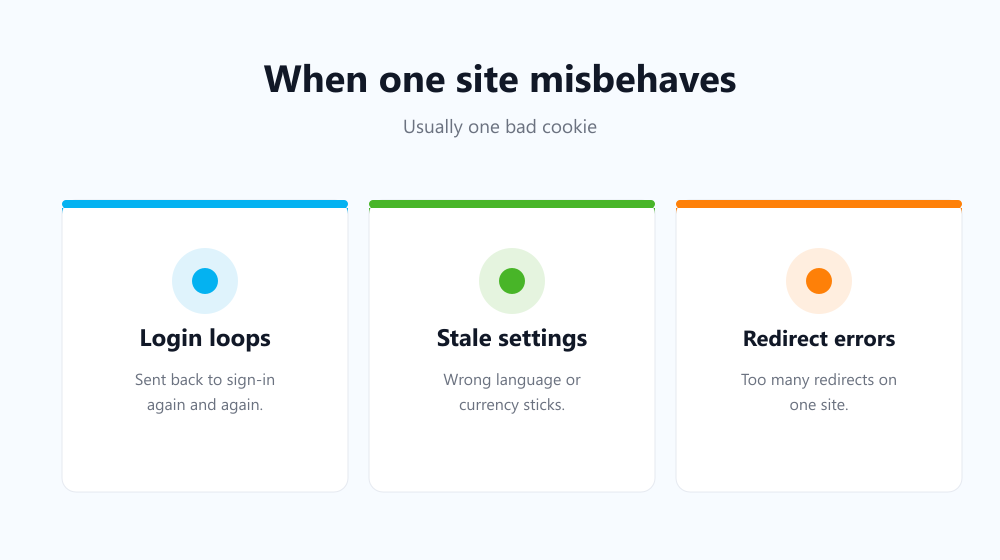
- A login loop: the site keeps sending you back to the sign-in page.
- Stale settings: the wrong language, region or currency sticks.
- “Too many redirects” or similar errors on a single site.
- Privacy: you’d simply rather a particular site forgot you.
The opposite approach: keep a few, clear the rest
If you find yourself deleting cookies site by site to stay private, flip it around. Keep cookies only for the sites you trust and clear everything else automatically. Auto History Wipe does exactly that. It clears cookies, cache and history on browser start-up or on a schedule, and whitelisted or bookmarked sites keep their cookies. You stay signed in to the sites you care about while trackers are reset.
Frequently asked questions
Will deleting cookies for one site sign me out of Google?
Only if the site you delete is a Google site. Removing cookies for, say, a shopping site leaves your Google login untouched.
Does it delete my saved password for that site?
No. Saved passwords are stored separately and stay put. You’ll simply need to sign in again, and your password manager can fill it in.
Why does the site still remember me?
Some sites also use local storage or sign you in through another domain. Use the “site data” option, not just cookies, and check for related domains in the search results.
Can I do this on my phone?
Yes. On Chrome for Android, tap the icon next to the address, then open the site’s cookies and site data option to clear it. On iPhone, Safari’s Advanced settings include Website Data, where you can remove one site.
Next time something breaks on a single website, don’t clear everything. Delete cookies for one site, reload, and keep the rest of your logins intact.