 Auto History Wipe
Does Clearing Cache Log You Out? The Short Answer
Written by Jem Jack · Published September 25, 2026
Short answer: no, clearing cache on its own does not log you out of websites. What signs you out is clearing cookies. The two are usually ticked together in the same “clear browsing data” box, and that’s where the confusion comes from. Here’s what each one does, and how to clean your browser without having to sign in to everything again.
Why clearing cache doesn’t sign you out
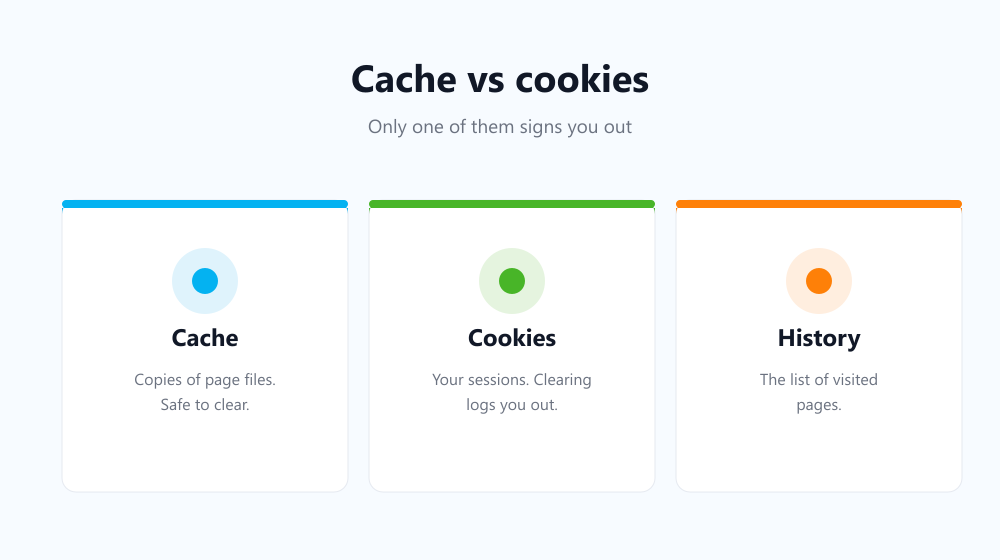
Your cache is a store of copies: images, scripts, style sheets and other page files your browser keeps so sites load faster next time. It doesn’t hold your login. When you clear it, pages simply download those files again on your next visit. They load a little slower once, and that’s it.
Your login lives in a cookie, a small token the site gave your browser to prove you’re signed in. Delete that cookie and the site no longer recognises you, so you’re logged out.
What clearing cache vs cookies actually does
| You clear… | Logs you out? | What changes |
|---|---|---|
| Cache only | No | Pages reload files once; stale or broken pages often get fixed |
| Cookies only | Yes, on most sites | Sessions, preferences and tracking IDs are reset |
| History only | No | The list of visited pages and address bar suggestions go |
| Everything | Yes | A fresh start: signed out, and nothing remembered |
For a deeper look at the three, see cookies vs cache vs history.
How to clear only the cache
In Chrome, Edge and Firefox the trick is to untick everything except the cache:
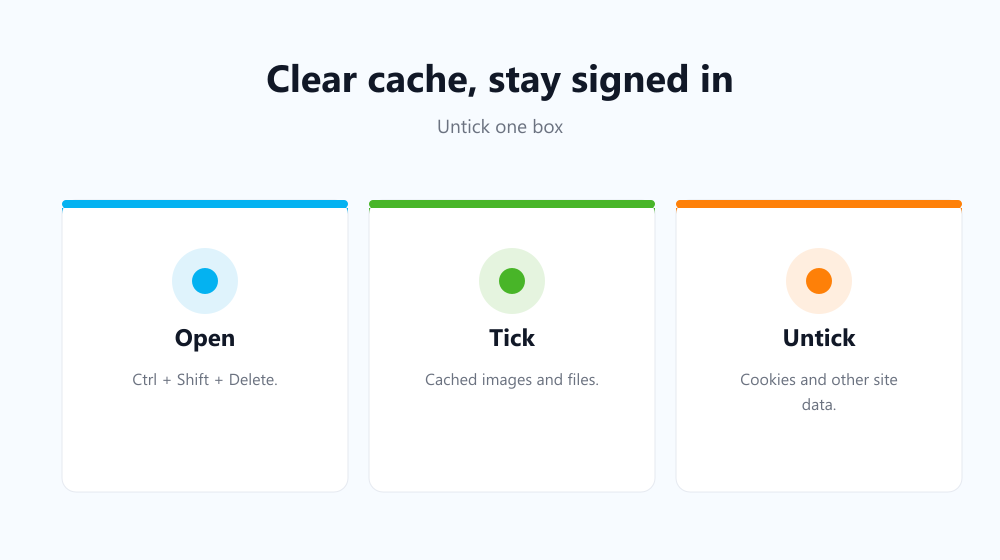
- Press Ctrl + Shift + Delete (Cmd + Shift + Delete on a Mac).
- Choose a time range. “All time” gives the most thorough clean.
- Tick Cached images and files (Firefox calls it “Temporary cached files and pages”).
- Untick Cookies and other site data and anything else you want to keep.
- Click Delete data or Clear now.
Full browser-by-browser steps are in our guide to clearing your browser cache. Chrome’s own help also notes that removing cookies signs you out of most sites, as described on Google’s clear-browsing-data page.
When emptying the cache is worth it
- A site looks broken or shows an old version after an update.
- A page won’t load properly, but works in a private window.
- You want to free disk space. Caches can reach several gigabytes.
- Privacy on a shared device. Cached images can reveal which sites were visited.
Clearing cache and cookies without losing important logins
For privacy you usually want cookies gone too, just not for the handful of sites you use every day. Auto History Wipe clears cache, cookies and history automatically on browser start-up or on a schedule, and keeps cookies for sites you whitelist or bookmark. That way trackers get reset while your email and bank stay signed in.
Frequently asked questions
Does clearing cache delete passwords?
No. Saved passwords are a separate item and aren’t touched unless you tick “Passwords” yourself. Read more in does clearing history delete passwords.
Why was I logged out after clearing cache?
Most likely because “Cookies and other site data” was ticked in the same dialog. It’s often ticked by default. Untick it next time.
Is anything important stored in the cache?
No. Cache is only temporary copies. The worst that happens is that pages load a bit slower the first time you revisit them.
How often should I clear my cache?
There’s no fixed rule. Clear it when a site misbehaves, or schedule it weekly if you care about privacy on a shared computer.
So don’t worry about clearing cache on its own: it won’t sign you out. Keep an eye on the cookies box instead. That’s the one that decides whether you stay logged in.