 Auto History Wipe
How to Pause History in Chrome
Written by Jem Jack · Published November 18, 2026
People go looking for a toggle and come back empty-handed, which makes them assume they missed it. They did not. There is no setting to pause history in Chrome the way you can pause activity in a Google account — the local list is written automatically and the browser offers no off switch for it. What you do have are three ways around that, each with a different trade-off.
Why there is no pause button
Chrome treats the local history list as part of how the browser works rather than as an optional feature. It powers the address bar’s suggestions, the back button’s long-press menu and the tab restore you rely on after a crash. Switching it off would break those, so Google never shipped the switch.
The confusion comes from Google’s account settings, which genuinely do have a pause control for Web & App Activity. That is a different store with a different purpose — it holds your searches, not your local page list.
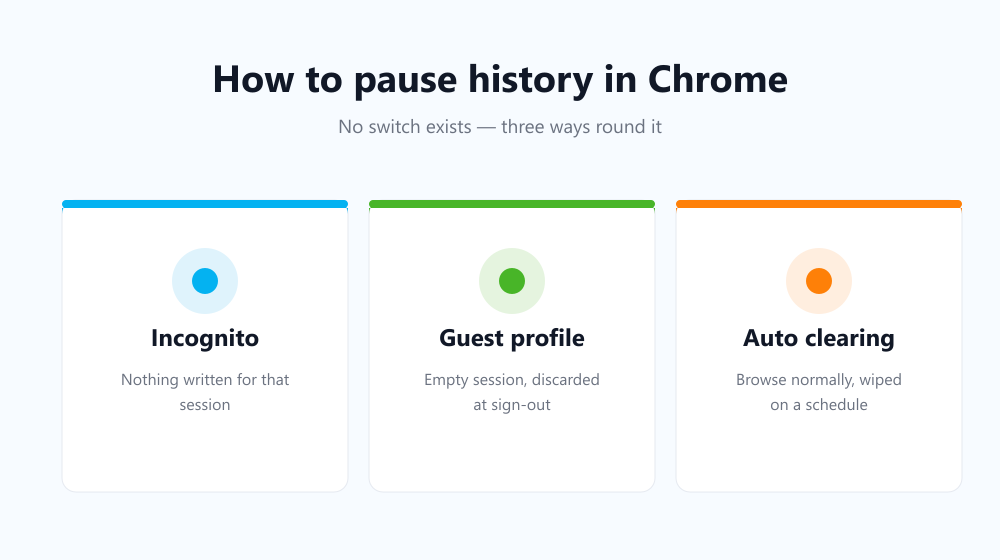
Three ways to pause history in Chrome
| Approach | Records anything? | What it costs you |
|---|---|---|
| Incognito window | No, nothing kept after closing | Signed out of everything, no extensions by default |
| Guest profile | No, discarded at sign-out | A separate, empty browser session |
| Automatic clearing | Yes, then wiped on a schedule | Nothing, once it is set up |
Incognito is the closest thing to a pause, because nothing is written to the list in the first place. The price is that it is a separate window where you are signed out everywhere — fine for a quick search, tiring as a permanent way to browse. Guest mode goes further still by starting from an empty profile with none of your extensions or bookmarks, which makes it the right choice when you are handing the laptop to someone else rather than hiding your own session.
Which one should you choose?
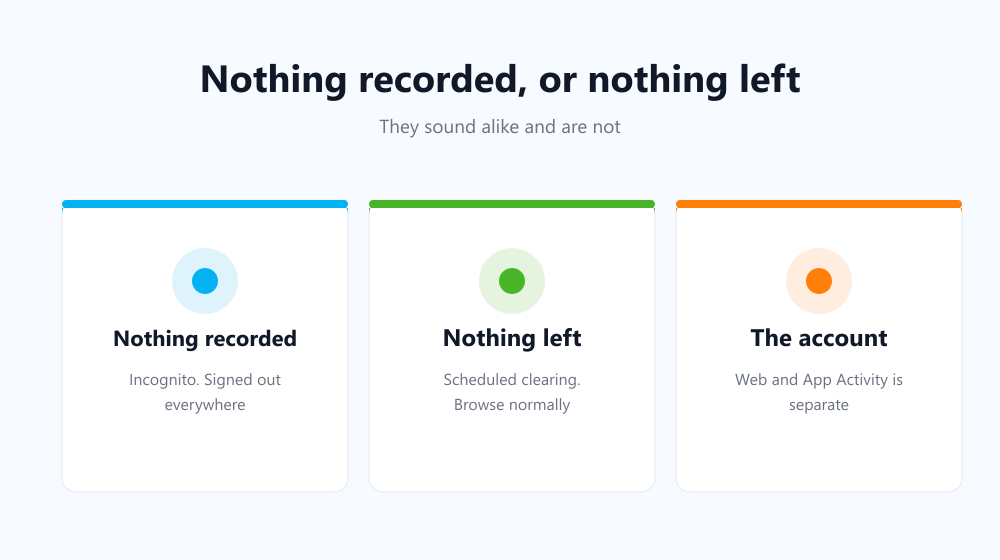
It depends on whether you want nothing recorded, or nothing remaining. Those sound alike and are not. If you need a single session to leave no trace at all, use Incognito. If what you actually want is a browser that never accumulates a long list, automatic clearing is the practical answer, because it lets you browse normally.
- One-off sensitive search: Incognito, then close the window.
- Lending the laptop to someone: a guest profile.
- Shared household machine: clear at every startup.
- Your own machine, tidy by default: clear on a daily or weekly timer.
Setting up the automatic option
Auto History Wipe fills the gap Chrome leaves: it clears history, cache and cookies when the browser starts or on a repeating schedule, and a whitelist keeps the handful of sites you want to stay signed in to. You browse normally and the list never grows past the interval you picked. Google’s own history documentation confirms what the browser itself offers, which is deletion rather than pausing.
Frequently asked questions
Does pausing Web & App Activity stop Chrome recording?
No. That setting only affects what your Google account stores. The local list on your device keeps growing — the two are explained in auto delete Google search history.
Can an extension stop history being written?
Not in Manifest V3. Extensions can delete entries after the fact, which is why automatic clearing is the realistic approach rather than true prevention.
Does turning off sync pause it?
No. It stops the list being shared between devices, but each device carries on recording its own copy exactly as before.
So you cannot pause history in Chrome, and knowing that saves you hunting for a setting that was never built. Use Incognito when a session should leave no trace, and automatic clearing when you simply want the list gone by morning.