 Auto History Wipe
Auto-Delete History in Firefox: 3 Ways That Work
Written by Jem Jack · Published September 23, 2026
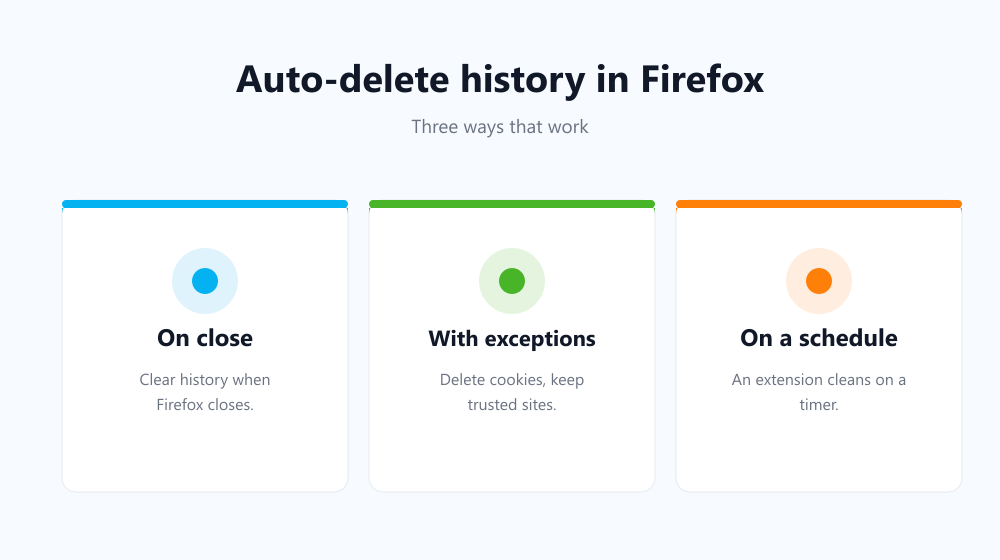
Firefox is one of the few browsers that can clean up after itself without any add-on. If you want to auto-delete history in Firefox, you can make it forget everything each time you close it, keep a handful of trusted sites signed in, or run a clean-up on a timer. Here are the three methods, what each one actually clears, and which one suits you.
Method 1: Clear history when Firefox closes
This is Firefox’s built-in option, and it’s the most thorough:
- Open Settings (or type
about:preferences#privacyin the address bar). - Go to Privacy & Security and scroll to History.
- Set “Firefox will” to Use custom settings for history.
- Tick Clear history when Firefox closes, then click Settings… next to it.
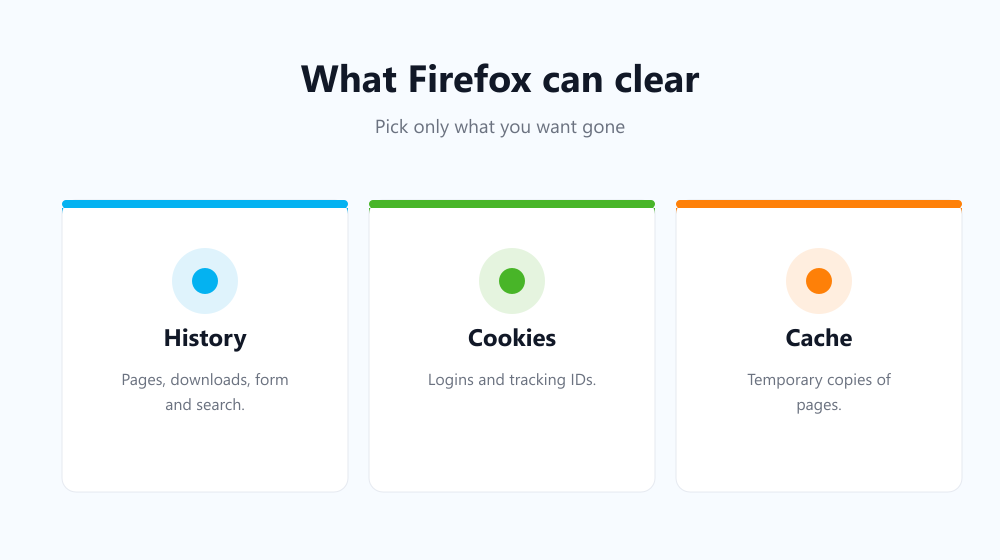
- Choose what to clear: browsing and download history, cookies, cache, form and search history, and so on.
From then on, every time you fully quit Firefox, the items you ticked are wiped. The downside: if you include cookies, you’ll be signed out of every site, every time.
Method 2: Delete cookies on close but keep your favourite logins
If being signed out everywhere is too much, use the Cookies and Site Data section instead. Tick Delete cookies and site data when Firefox is closed, then click Manage Exceptions and add the sites you want to stay signed in to, such as your email or bank, with Allow.
According to Mozilla’s support pages, those exceptions are only honoured by this setting. If you also clear cookies under “Clear history when Firefox closes”, every cookie goes, exceptions or not. So pick one approach for cookies and stick to it.
Method 3: Auto-delete history in Firefox on a schedule
The built-in options only run when you close the browser. Plenty of people never do: Firefox sits open for days, and nothing gets cleaned. A clean-up extension fills that gap. Auto History Wipe is available for Firefox. It clears history, cookies, cache and downloads when the browser starts, or every hour, every 12 hours, daily or weekly. Bookmarked and whitelisted sites keep their cookies, so your important logins survive.
Which method should you use?
| Method | When it runs | Keeps chosen logins? | Best for |
|---|---|---|---|
| Clear history when Firefox closes | On quit | No | Maximum privacy, shared computers |
| Delete cookies on close + exceptions | On quit | Yes | Everyday use with a few trusted sites |
| Scheduled clean-up extension | On start-up or on a timer | Yes | People who rarely close the browser |
| Permanent private browsing | Continuously | No | Never saving anything at all |
What about permanent private browsing?
Firefox can also run in private mode all the time: choose Never remember history in the History menu. Nothing is saved, but you lose useful features too: no history to search, no remembered sessions, and you sign in again every time. Private mode also doesn’t hide you from websites or your internet provider; our guide to what private browsing really hides explains why.
Tips for a clean Firefox set-up
- Close Firefox properly. On-close clearing only runs when the browser fully exits, not when you close one window.
- Leave saved passwords alone unless you really want them gone. Clearing history doesn’t remove them by default; see does clearing history delete passwords.
- Turn on Enhanced Tracking Protection (Strict) so fewer trackers are stored in the first place.
Frequently asked questions
Does Firefox delete history automatically by default?
No. By default Firefox remembers history until you clear it or it runs short of space. You have to turn on one of the options above.
Why is my history still there after closing Firefox?
Usually because Firefox didn’t fully quit. A window was still open somewhere, or the browser was set to restore the previous session. Also check that “Clear history when Firefox closes” is ticked and that History is selected in its settings.
Can I keep some sites signed in?
Yes. Use “Delete cookies and site data when Firefox is closed” with Allow exceptions, or whitelist the sites in a clean-up extension.
Does this work on Firefox for Android?
Firefox for Android has its own “Delete browsing data on quit” option in Settings. It only runs when you use Quit from the menu.
Whichever route you choose, it takes about two minutes to auto-delete history in Firefox, and from then on your browser cleans up after you.