 Auto History Wipe
Does Incognito Mode Actually Keep You Private?
Written by Jem Jack · Published August 18, 2026
Incognito mode (or “private browsing”) feels like a privacy cloak — open a special window and you are invisible, right? Not quite. It is genuinely useful, but it protects far less than most people assume. Here is the honest breakdown of what it really does, what it does not, and how to actually keep your browsing private.
What incognito mode actually does
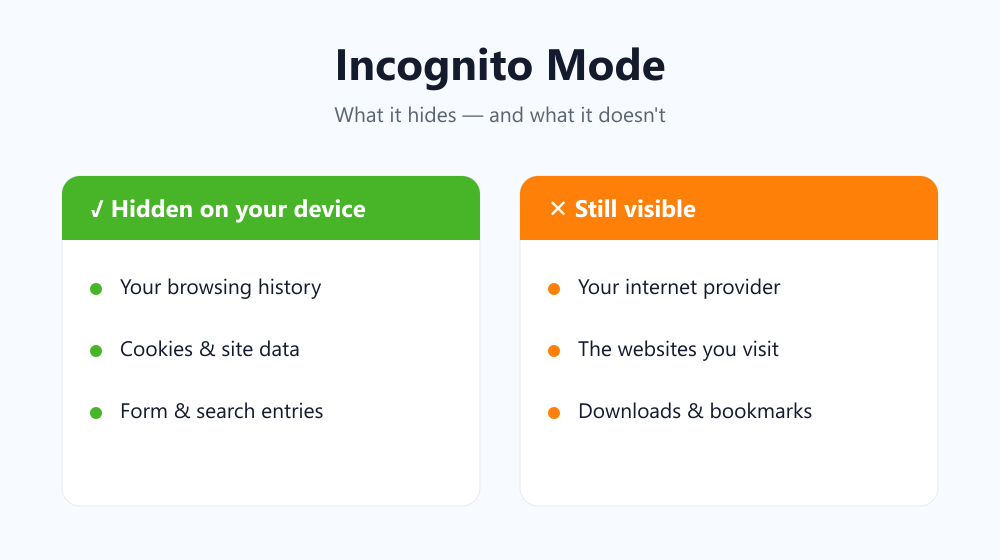
When you close a private window, the browser throws away that session’s local traces on your device:
- It does not save the history of pages you visited in that window.
- It does not keep cookies or site data after the window closes.
- It does not store what you typed into forms or the search bar.
That is genuinely handy for a shared computer, logging into a second account, or price-checking without your normal cookies in play. Google’s own description of Incognito says the same thing: it stops Chrome saving your local activity, and nothing more.
What it does NOT hide
This is where the myth breaks down. Private browsing does nothing to hide your activity beyond your own device. While you browse:
- Your internet provider (and on a work or school network, the administrator) can still see the sites you visit.
- The websites themselves still see your IP address and can still fingerprint your device.
- Anything you download or bookmark stays on your device.
- If you sign in to an account, you are no longer anonymous to that service.
Advantages and disadvantages of incognito mode
Incognito is neither the privacy shield some people think it is nor the useless gimmick others call it. It does one job well and several jobs not at all.
The advantages
Nothing is left on the device. Once you close every incognito window, the session’s history, cookies, site data and form entries are discarded. On a shared or borrowed computer that is the whole point, and it works.
You browse signed out. Sites see you as a stranger rather than as your logged-in self, which is genuinely useful for checking how a page looks to a new visitor, or for using a second account without logging out of the first.
It takes one keystroke. No setup, no configuration, nothing to remember afterwards — which is exactly why people reach for it.
The disadvantages
Your network still sees everything. Your employer, your school, your internet provider and the owner of the Wi-Fi you are on all see the same traffic they would otherwise. Incognito changes nothing on that side.
The websites still see you. Your IP address, your browser fingerprint and anything you type are exactly as visible as always.
Signing in undoes it. Log into Google inside an incognito window and your searches go to your account history like any other session.
Downloads and bookmarks survive. Anything you save deliberately stays saved — incognito only forgets what it recorded automatically.
It blocks nothing. No ad blocking, no tracker blocking, no malware protection. It is not a VPN and it was never meant to be one.
It only covers that session. Everything you did in a normal window before opening incognito is still sitting in your regular history, untouched.
That last point is the one that catches people out. Incognito protects the session you remember to open it for; it does nothing about the browsing you did the rest of the day.
Why “private” is such a misleading word
The confusion is understandable — the name promises more than the feature delivers. “Private” here means private from other people who share your device, not private from the wider internet. A useful way to picture it: closing a private window is like shredding your own notes as you leave a library. The shredding is real and genuinely helpful, but it does nothing about the building’s security cameras, the librarian who watched you walk in, or the record the front desk quietly kept. Your local notes are gone; everyone else’s record of you is not. That single mental model clears up almost every misunderstanding people have about it.
Incognito mode vs a VPN vs clearing history
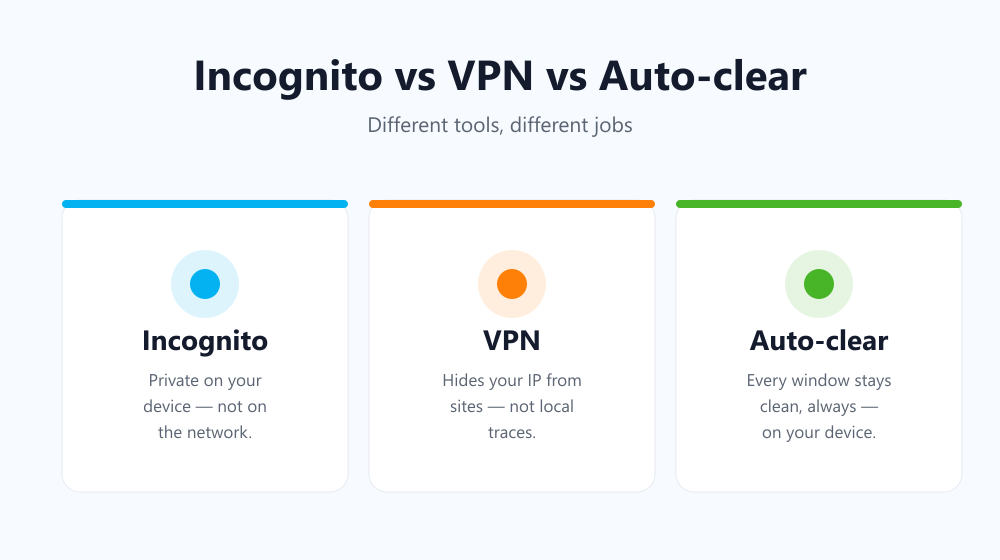
These three tools solve different problems. This table makes it clear:
| Tool | Hides from your device | Hides from your network / sites |
|---|---|---|
| Incognito mode | Yes (after you close it) | No |
| VPN | No | Partly — hides your IP from sites |
| Clearing history automatically | Yes (always, every window) | No |
When incognito mode is the right tool
Reach for it when your goal is local privacy: keeping a session off the shared family laptop, testing a site while logged out, or stopping autocomplete from suggesting something awkward. Just do not treat it as anonymity. If you want your normal browsing to leave no trail, a better habit is to clear your history automatically in your regular window, so every session cleans itself without switching modes.
Frequently asked questions
Can my employer see incognito browsing?
Yes. Private windows only clear local traces on your device; traffic on a company network can still be logged by the network administrator.
Does incognito mode hide my IP address?
No. Websites still see your real IP. Hiding your IP requires a VPN or proxy, which is a completely separate layer.
Do private windows protect me from viruses?
No. Private browsing is about not storing local traces, not about security. Malware, phishing pages and malicious downloads are exactly as dangerous in a private window as in a normal one, so keep your usual protections switched on.
Is private browsing completely useless then?
Not at all — it is excellent for local, on-device privacy. It just is not the invisibility cloak the name suggests, and expecting more from it is how people get caught out.
Bottom line: incognito mode keeps your device clean for one session, but it is not anonymity. For everyday privacy, pair it with automatically clearing your browsing history.