 Auto History Wipe
How to Auto-Delete YouTube History (and Pause It)
Written by Jem Jack · Published September 30, 2026
YouTube remembers every video you watch and every search you type, and it uses both to shape your recommendations. The good news: you can make YouTube forget on its own. This guide shows how to auto-delete YouTube history after a set period, how to pause it completely, and how to clean the separate copy your browser keeps.
How to auto-delete YouTube history
YouTube’s auto-delete lives in your Google Account, not in the YouTube app itself:
- Go to myactivity.google.com and sign in.
- Open YouTube History.
- Click Auto-delete (it may say “Off” or show the current period).
- Choose Auto-delete activity older than 3 months, 18 months or 36 months.
- Click Next, then Confirm.
Google deletes anything older than your chosen period straight away, then keeps doing it on a rolling basis. Google’s help page on deleting activity covers the same menu.
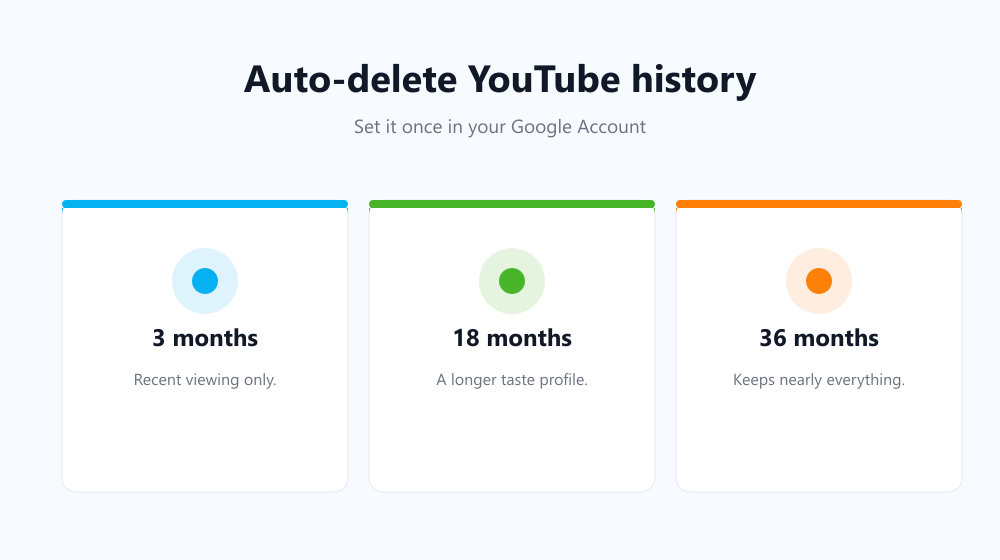
Which period should you pick?
| Setting | What you keep | Good for |
|---|---|---|
| 3 months | Recent recommendations | Most people who value privacy |
| 18 months | Long-term taste profile | Heavy YouTube users |
| 36 months | Nearly everything | Default for many newer accounts |
| Paused | Nothing new is saved | Maximum privacy; weaker recommendations |
Auto-delete only affects watch and search history. Your subscriptions, playlists and liked videos stay where they are.
Pause YouTube history completely
If you’d rather YouTube saved nothing at all, open YouTube History in My Activity and click Turn off, or in the YouTube app go to You, then Settings, then Manage all history. While history is paused, new videos and searches aren’t recorded. Expect your home feed to become much more generic. With history paused and nothing saved, YouTube may show a mostly empty home page instead of recommendations.
Delete what’s already there
Auto-delete only removes activity older than the period you choose. To clear recent history too, open YouTube History, click Delete and pick a range: last hour, last day, all time, or a custom range. You can also remove single videos with the X next to each entry.
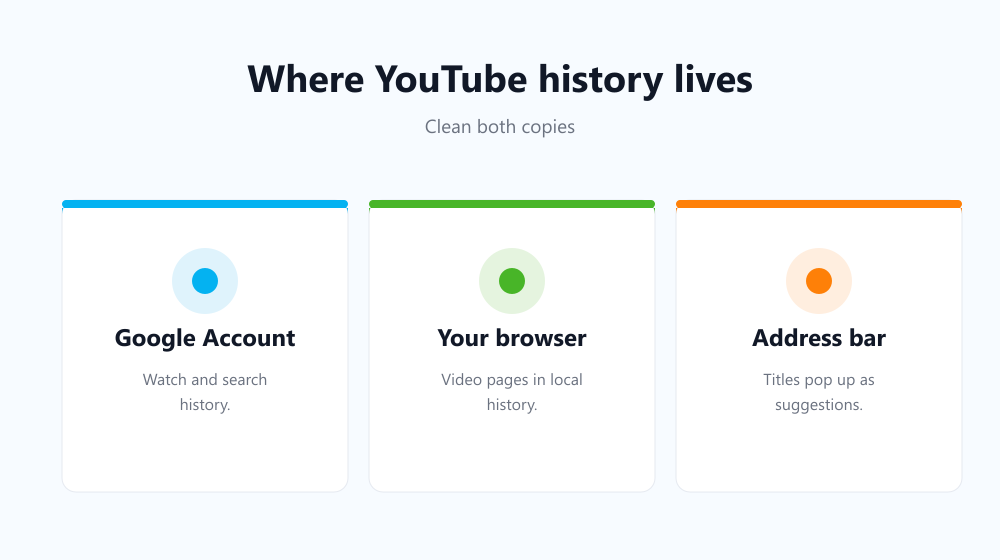
Don’t forget your browser’s copy
Even with YouTube’s history cleared, your browser still remembers every YouTube page you opened. The video titles sit in your browsing history and show up as suggestions when you start typing in the address bar. On a shared computer that’s often what gives the game away.
Auto History Wipe takes care of that side automatically. It clears your browser’s history, cookies and cache on start-up or on a schedule, so the videos you watched don’t linger on the device. It doesn’t touch your Google Account, so use the auto-delete setting above for that part. Our guide to deleting Google search history covers the rest of your account activity.
Frequently asked questions
Does auto-delete YouTube history affect my recommendations?
A little. With a 3-month setting, recommendations are based on recent viewing only. Most people find they’re still good, and often fresher.
Is deleted YouTube history gone for good?
Google says deleted activity is removed from your account and begins a process to delete it from its systems. It no longer appears anywhere you or others can see it.
Does watching in Incognito keep YouTube history clean?
Yes, as long as you’re not signed in. Incognito doesn’t save anything to your account or your browser history. Learn more in does Incognito mode keep you private.
Can I auto-delete YouTube history on my phone?
Yes. In the YouTube app go to You, then Settings, then Manage all history, then Auto-delete. It changes the same setting in your Google Account.
It only takes a minute to auto-delete YouTube history. Set it to three months, clear your browser’s copy too, and your viewing stays private without any ongoing effort.