 Auto History Wipe
How to Clear Cache for One Site in Any Browser
Written by Jem Jack · Published October 28, 2026
When one page is broken, wiping every saved file in the browser is a heavy-handed fix that also slows down every other site you use. You can clear cache for one site instead, in about twenty seconds, and leave the rest of your browsing exactly as it was. Every major browser has the control; each one buries it somewhere different.
The fastest fix: a hard reload
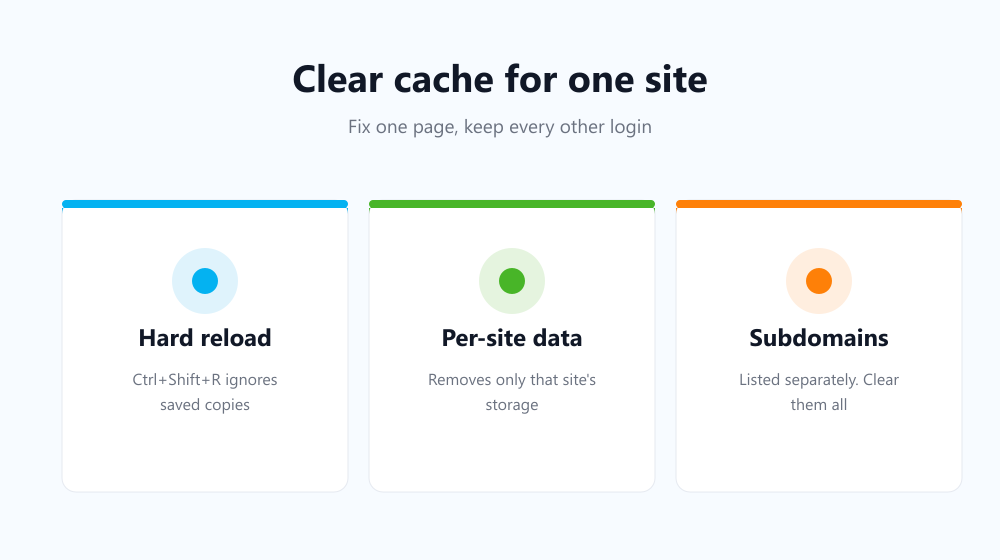
Before digging through settings, try the shortcut. With the broken page open, press Ctrl+Shift+R (or Cmd+Shift+R on a Mac). That forces the browser to ignore its saved copies and fetch the page fresh. It solves most stale-page problems outright and touches nothing else.
If the fault survives a hard reload, the stored data is deeper than the page itself — that is when the per-site controls earn their place.
Chrome and Edge
- Open Settings → Privacy and security → Third-party cookies.
- Choose See all site data and permissions.
- Search for the site by name.
- Use the bin icon next to it to remove its stored data.
Edge follows the same path with its own wording under Cookies and site permissions. Both browsers remove cache, cookies and local storage for that one origin together, so expect to sign in to that site again.
One detail catches people out here: subdomains are listed separately. If a shop serves its checkout from a different subdomain than its catalogue, removing the one you searched for may leave the broken half untouched. Search for the bare domain name rather than the full address you were visiting, and clear every entry the list returns for it. That is usually the difference between a fix that holds and one that appears to do nothing at all.
Firefox
- Open Settings → Privacy & Security.
- Under Cookies and Site Data, choose Manage Data.
- Search for the site, select it, then Remove Selected.
Mozilla documents the same screen in its guide to clearing cookies and site data, including what each category holds.
What happens when you clear cache for one site?
| Method | Scope | Signs you out? |
|---|---|---|
| Hard reload | This page’s cached files | No |
| Per-site data removal | Everything that one site stored | Yes, for that site |
| Clear browsing data | Every site at once | Yes, everywhere |
The middle row is the one worth knowing. It is the surgical option: one site loses its stored state, and your other logins survive untouched. The cookie side of the same idea is covered in how to delete cookies for one site.

When the whole-browser clean-up is the better tool
Per-site removal is for fixing a fault. If your aim is privacy rather than troubleshooting, going site by site is the wrong shape of job — you would have to remember every site you visited. Auto History Wipe clears cache, cookies and history across the browser on startup or on a schedule, and its whitelist keeps the handful of sites you want to stay signed in to.
Frequently asked questions
Why did the site break again after I cleared it?
Because the faulty file came back with the next visit. That points at the site’s own deployment rather than your browser, and usually resolves within a day.
Does this affect my saved passwords?
No. Passwords live in a separate store and are never removed by clearing a site’s data — only the active session goes.
Is there a shortcut on mobile?
Not a per-site one. Mobile browsers offer the all-sites dialog only, so a hard reload is usually your best first attempt there.
Learning to clear cache for one site turns a blunt instrument into a precise one: fix the page that is misbehaving, keep every other login intact, and save the full sweep for when privacy, not troubleshooting, is the goal.