 Auto History Wipe
How to Clear History on Chrome for Android
Written by Jem Jack · Published October 21, 2026
The phone version hides the controls in a different place from the desktop, which is why so many people give up looking. Here is how to clear history on Chrome for Android in four taps, what quietly syncs to your laptop while you do it, and how to stop the list rebuilding itself the moment you carry on browsing.
The four taps to clear history on Chrome
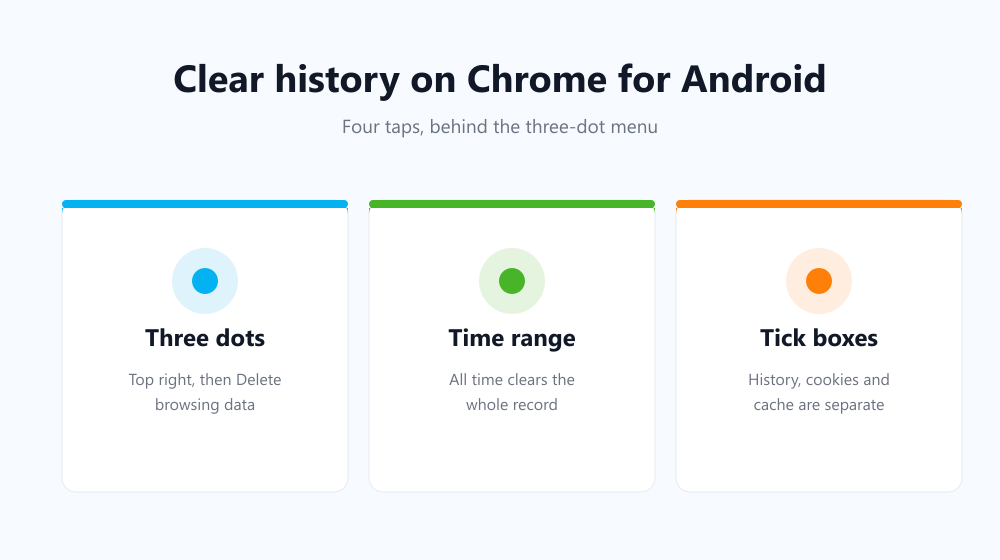
- Open Chrome and tap the three dots at the top right.
- Tap Delete browsing data (older builds call it History → Clear browsing data).
- Pick a time range — All time if you want the lot.
- Tick Browsing history, then confirm.
The same screen offers cookies and cached files. Each has a different consequence, so tick deliberately rather than clearing all three out of habit. Cookies sign you out of every site on the phone, which is fine on a device you share and annoying on one you do not. Cached files only cost you a slower first load afterwards. The time range matters as much as the boxes: Last hour is enough to undo one browsing session, while All time starts the record over completely.
Does it delete history on my other devices too?
If you are signed in with sync turned on, yes. Chrome treats history as one shared list across every device on that account, so wiping it on the phone wipes it on the laptop as well. If you only wanted the phone cleaned, turn sync off for history first, or sign out before you clear.
Where each copy actually lives
| Copy | Cleared by the steps above? | Scope |
|---|---|---|
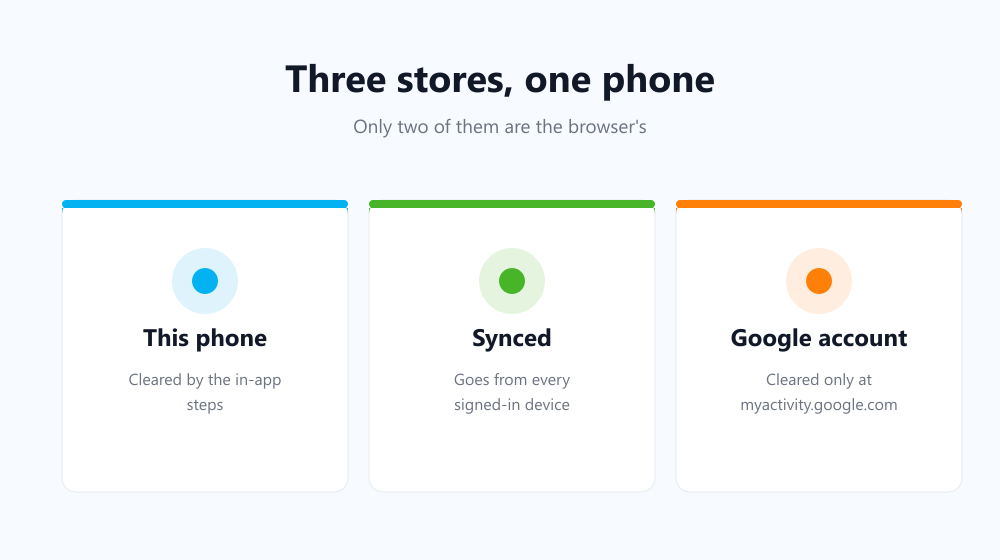
| On-device Chrome history | Yes | This phone |
| Synced Chrome history | Yes, if sync is on | Every signed-in device |
| Google Account activity | No | Your account, cleared at myactivity.google.com |
That third row catches most people out. The searches you ran while signed in are kept by Google separately from the browser, and no in-app button touches them — the full routine is in auto delete Google search history.
Can I make Android do it automatically?
Not on the phone. Chrome for Android accepts no extensions, so there is nothing to install and no scheduling built in — your options are the manual steps above or Incognito tabs. Google’s own Incognito guide for mobile covers the second one.
On the desktop side it is a different story. Auto History Wipe clears the same data on startup or on a timer, so the machine where you do most of your browsing stays clean by itself. Pairing an automatic desktop with manual phone clean-ups covers both halves without much effort.
Keeping the list short by default
- Use Incognito for anything you would rather not record at all.
- Turn off history sync if your phone and laptop should stay separate.
- Set Google’s Web & App Activity to auto-delete every three months.
- Clear the browser side on a rhythm you will actually keep.
Frequently asked questions
Where did the Clear browsing data button go?
Recent Chrome builds renamed it Delete browsing data and moved it up a level, straight into the three-dot menu. Nothing about what it removes has changed.
Does this remove downloaded files?
No. It clears the download list inside Chrome if you tick it, but the files themselves stay in your Downloads folder until you delete them yourself.
Can someone recover it afterwards?
Not from the browser, though other copies may survive elsewhere — see can deleted history be recovered.
Knowing how to clear history on Chrome for Android takes a minute, but the real win is remembering that the phone, the synced account and Google’s own activity log are three separate stores. Clear the one you meant to, and put the desktop half on a schedule so it never becomes a chore.