 Auto History Wipe
How to Clear History on Chromebook
Written by Jem Jack · Published November 13, 2026
Chromebooks are shared more often than any other kind of laptop — between siblings, around a classroom, across a family kitchen table. That makes knowing how to clear history on Chromebook more useful here than on a machine only you ever open. The steps take under a minute, and one common assumption about signing out is worth correcting first.
The steps to clear history on Chromebook
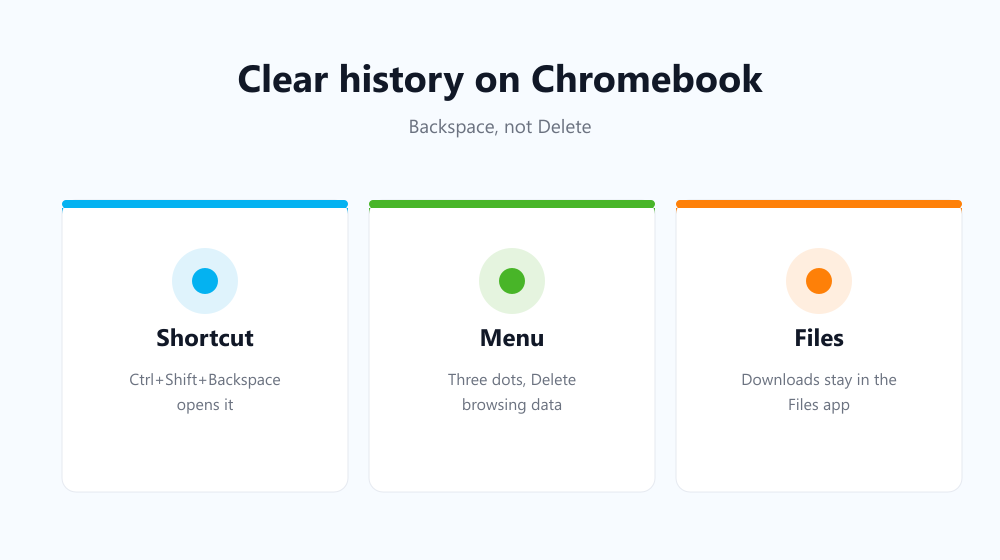
- Open Chrome and press Ctrl+Shift+Backspace, or go to the three-dot menu → Delete browsing data.
- Choose a time range; All time clears everything.
- Tick Browsing history, and cookies or cached files if you want those gone as well.
- Confirm, then reopen the history page to check it is empty.
On ChromeOS the browser effectively is the device, so this dialog covers most of what the machine remembers about your browsing. Files you downloaded stay in the Files app until you delete them separately.
Does signing out clear anything?
No, and this catches families out constantly. Signing out of your Google account hides your profile behind a login; it does not delete the history stored in it. Sign back in and the whole list is there again. If you share the Chromebook with one account between several people, signing out protects nothing at all.
The same applies to closing the lid or restarting. Neither is a privacy action — they suspend or reload the session, and the stored list survives both untouched. Only the clear-data dialog actually removes anything, which is why it is worth putting on a schedule rather than trusting a habit of shutting the device.
Profiles, guest mode and what each one leaves behind
| Approach | What it leaves behind | Good for |
|---|---|---|
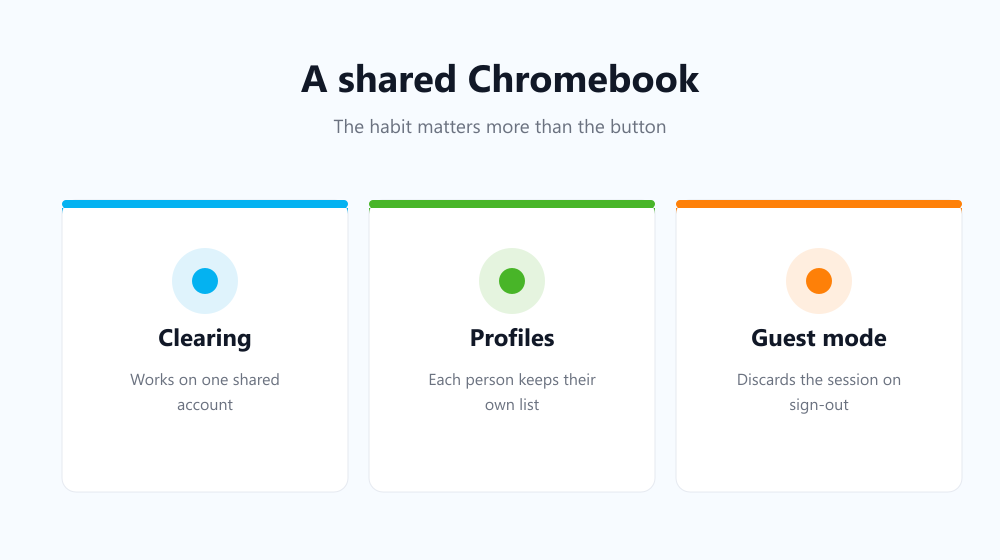
| Clearing browsing data | Nothing in the list | A shared account |
| A separate ChromeOS profile | Each person’s own history, kept | Family members with their own logins |
| Guest mode | Nothing after sign-out | Lending the device briefly |
| Signing out only | Everything, still stored | Not much |
Guest mode is the underused one: it discards the whole session when the guest signs out. The trade-offs are the same as the ones in guest mode vs Incognito.
School and work Chromebooks
If the device was issued by a school or employer, assume the picture is different. Managed Chromebooks can have policies that keep activity reports, restrict which settings you may change, and log far more than the browser itself stores. Clearing your history on such a device tidies your own view without touching the administrator’s records. Google’s Chromebook browsing data documentation sets out what the built-in controls cover.
Keeping a shared device clean by itself
A shared machine is exactly where a manual routine fails: whoever used it last is not the one who remembers. Auto History Wipe installs on ChromeOS like any Chrome extension and clears history, cache and cookies at every browser startup, so each session begins clean without anyone having to think about it. Its whitelist keeps the sites you want signed in from being logged out each time.
Frequently asked questions
Does powerwashing delete my history?
It wipes the local device, but anything synced to your Google account returns when you sign in again on any machine.
Why is the shortcut different here?
Chromebook keyboards have no Delete key in the usual place, so ChromeOS maps the same dialog to Ctrl+Shift+Backspace.
Does it clear my Google searches too?
No. Those live in your account, not the browser — see auto delete Google search history.
Learning to clear history on Chromebook is a one-minute job, but on a device other people pick up, the schedule matters more than the steps. Use separate profiles where you can, guest mode when you lend it out, and let the clean-up run at every startup so nobody has to remember it.