 Auto History Wipe
Guest Mode vs Incognito: Which Should You Use?
Written by Jem Jack · Published October 12, 2026
Chrome and Edge both offer two ways to browse without leaving a trail, and they’re easy to mix up. The difference comes down to whose computer it is. Comparing guest mode vs Incognito: guest mode is for letting someone else use your browser, or for using a public computer. Incognito is for browsing privately in your own browser. Here’s what each does and when to use which.
What guest mode does
Guest mode opens a completely empty, temporary browser profile. The guest can’t see your bookmarks, history, saved passwords, open tabs or extensions. When the guest window is closed, everything from that session is deleted. Google’s help page describes it as the option for a public computer, or for when someone borrows yours.
To open it in Chrome, click your profile picture at the top right and choose Guest. In Edge, click your profile picture and choose Browse as guest.
What Incognito does
Incognito (InPrivate in Edge) opens a private window inside your profile. Your bookmarks and saved passwords are still available, but Chrome doesn’t save the pages you visit, and it throws away that session’s cookies and site data when you close every Incognito window. Extensions are off unless you’ve allowed them. Open one with Ctrl + Shift + N.
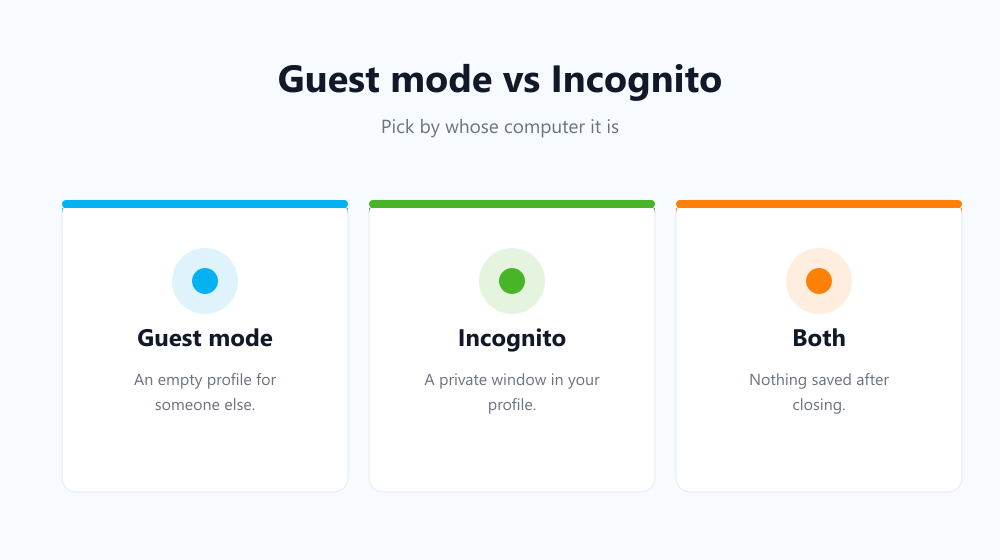
Guest mode vs Incognito side by side
| Guest mode | Incognito | |
|---|---|---|
| Can see your bookmarks and passwords | No | Yes |
| Saves history after closing | No | No |
| Keeps cookies after closing | No | No |
| Extensions | None | Off unless allowed |
| Downloads stay on the computer | Yes | Yes |
| Hidden from network and websites | No | No |
| Available on phones | No | Yes |
| Best for | Lending your computer; public PCs | Private browsing on your own device |
What neither mode hides
Both modes only affect what’s stored on the computer. Your internet provider, your employer’s or school’s network, and the websites you visit can still see your activity. Files you download stay in the Downloads folder. If you sign in to an account, that service knows it’s you. Our article on whether Incognito mode keeps you private goes deeper on this.
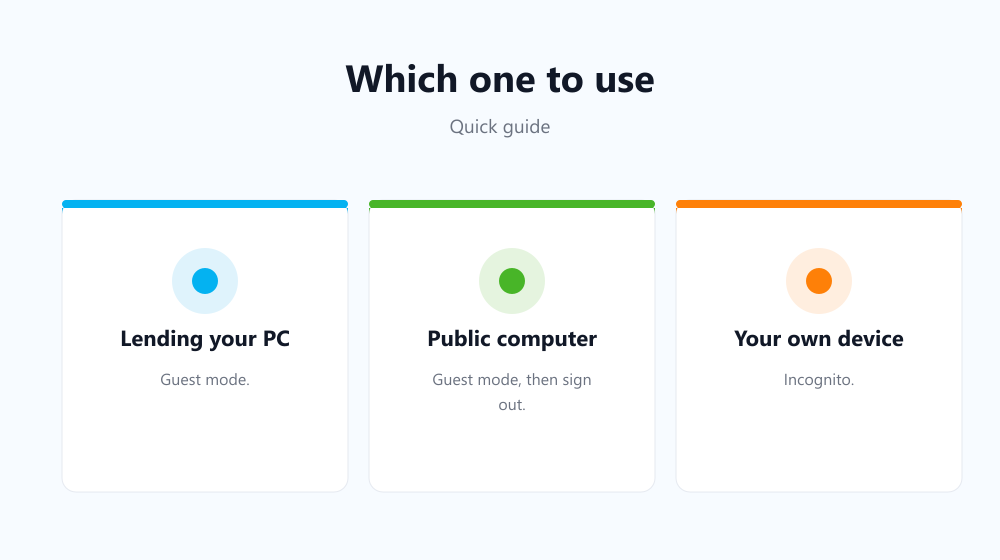
Which should you use?
- A friend wants to check their email on your laptop: guest mode. They can’t see your data, and theirs disappears afterwards.
- You’re using a library or hotel computer: guest mode, and sign out of everything before you leave.
- You’re shopping for a gift on the family PC: Incognito, so it doesn’t show up in history or suggestions.
- You need a second login to the same site: Incognito works well for that.
For everything else: clean your normal profile
Most browsing happens in your normal profile, where neither mode helps. That’s where history, cookies and cache quietly pile up. Auto History Wipe clears them automatically when the browser starts or on a schedule, while keeping cookies for sites you whitelist or bookmark. You get most of the benefit of private browsing without giving up your everyday logins. See also where cleared history can still be found.
Frequently asked questions
Is guest mode more private than Incognito?
From other people using the same computer, yes. The guest can’t reach your bookmarks or passwords. Online, both are equally visible to networks and websites.
Can the owner of the computer see guest mode history?
Not in the browser, because it’s deleted when the guest window closes. But device management software or network logs can still record activity.
Does Firefox have a guest mode?
Not as such. Firefox offers private windows and separate profiles, but no one-click guest profile like Chrome and Edge.
Why can’t I find guest mode on my phone?
Chrome doesn’t offer guest mode on Android or iPhone. Use an Incognito tab instead.
The choice in guest mode vs Incognito is simple once you know the rule: guest mode for someone else, Incognito for you. For your everyday profile, an automatic clean-up does the rest.