 Auto History Wipe
How to Clear History on Safari (Mac)
Written by Jem Jack · Published November 25, 2026
Safari handles this differently from every Chromium browser, and the difference catches people out. When you clear history on Safari, it does not just remove the list — it also clears cookies and website data for the same period, so you are signed out of sites as a side effect. Here is how to do it, and how to avoid that when you do not want it.
The standard way to clear history on Safari
- Open Safari and choose History in the menu bar.
- Select Clear History at the bottom.
- Pick a range: the last hour, today, today and yesterday, or all history.
- Confirm with Clear History.
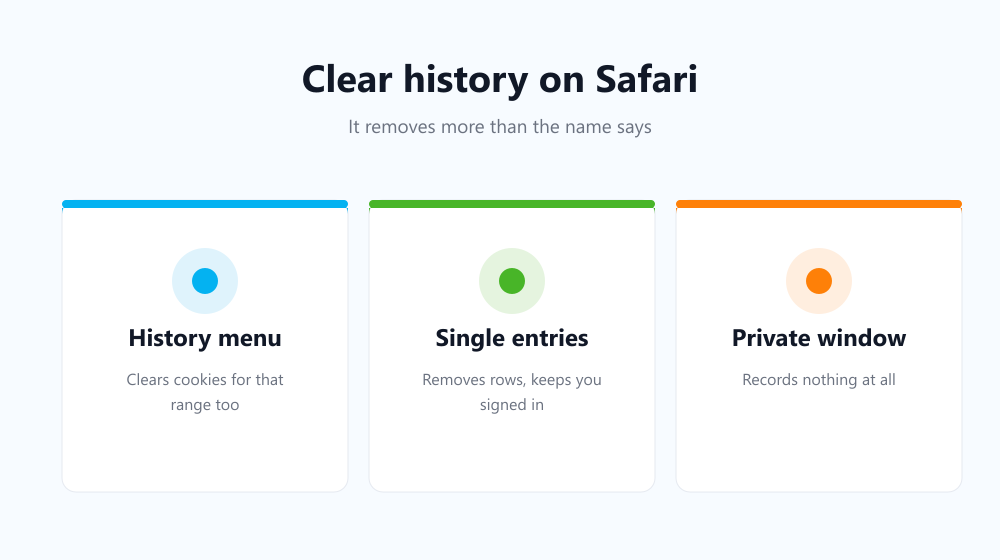
That is the whole flow, and it is deliberately simple. The catch is hidden in the wording: Apple’s dialog quietly includes cookies and website data in the same action.
Why does it sign me out of everything?
Because Safari treats history and website data as one unit for that time range. Chromium browsers give you separate tick boxes; Safari does not. If you only wanted the list gone and your logins kept, the menu command is the wrong tool.
The alternative is to remove entries individually. Open History → Show All History, find the entries you want gone, and delete them from there. That removes the rows without touching cookies at all.
It is worth knowing which behaviour you are getting before you pick a range, because the two feel identical until the next time you open a site and find yourself at a login screen. If you share the Mac with someone and want a genuine clean sweep, the menu command is correct. If you are tidying up after a single afternoon of browsing, deleting those entries by hand is almost always the better tool.
Removing old entries automatically
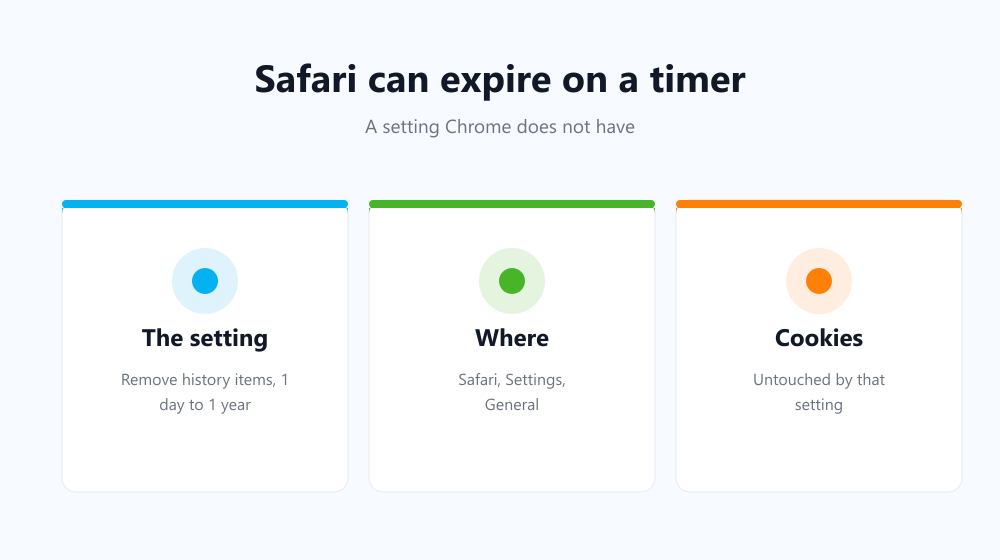
Safari is unusual in offering a real retention setting, which Chrome and Edge do not. In Safari → Settings → General, the Remove history items menu lets you choose after one day, one week, two weeks, one month or one year. Apple documents it in its Safari history guide.
| Approach | Removes cookies too? | Good for |
|---|---|---|
| Clear History menu | Yes, for that range | A clean sweep |
| Deleting single entries | No | Keeping your logins |
| Remove history items setting | No, list only | Ongoing housekeeping |
| Private window | Nothing recorded | A one-off session |
What about Chrome or Firefox on the same Mac?
Each browser keeps its own separate history, so clearing Safari leaves the others untouched. If you use more than one, you have to clear each — or install something that handles it for you. Auto History Wipe covers Chrome, Edge and Firefox on macOS and clears history, cache and cookies on startup or on a schedule, with a whitelist so chosen sites stay signed in. If you are unsure what the cache is actually holding, see what is cached data.
Frequently asked questions
Does this clear my iPhone history too?
If iCloud is syncing Safari, yes — the list is shared across your Apple devices, so clearing on the Mac clears it everywhere.
Can I clear one site only?
Yes, from Show All History, or through Settings → Privacy → Manage Website Data for its stored data specifically.
Does it delete my saved passwords?
No. Passwords live in Keychain, entirely separate from browsing data, and are never removed by clearing history.
So to clear history on Safari, use the History menu for a full sweep and single entries when you want your logins intact. Set the Remove history items menu once, and the browser keeps the list short without you returning to it.