 Auto History Wipe
Does Clearing History Delete Your Downloads?
Written by Jem Jack · Published October 23, 2026
It is a fair worry before you press the button: if you wipe the record, do the files go with it? The short answer is no — clearing history removes the browser’s list of what you downloaded, not the documents, photos and installers sitting in your Downloads folder. But the two are easy to confuse, because the browser shows them on the same screen.
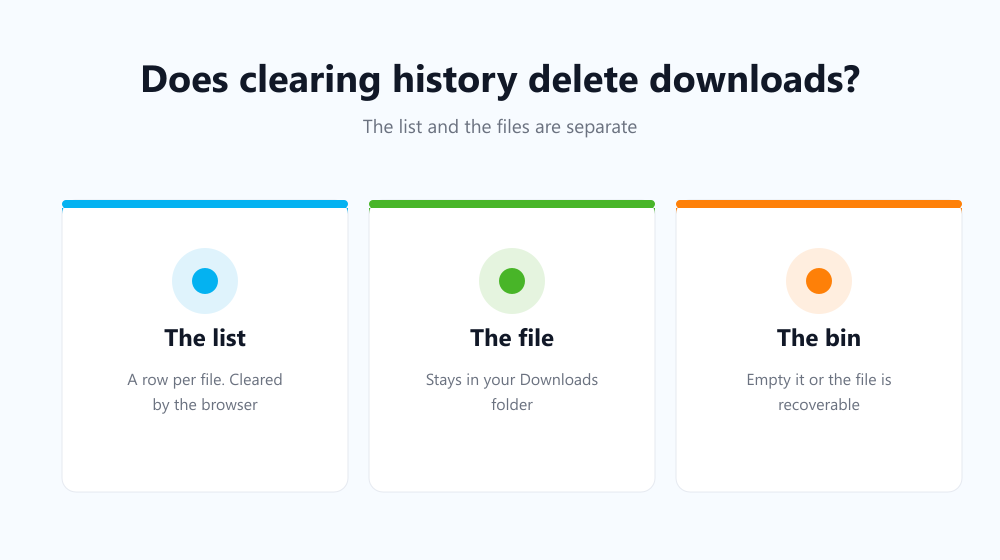
The list and the files are separate things
Your browser keeps a download history: a row per file with its name, the site it came from and when it arrived. The file itself is an ordinary item on your disk, written by the operating system and owned by you. Deleting the row is like tearing a page out of a logbook — the parcel it describes is still in the cupboard.
What each tick box actually removes
| Tick box | What goes | What stays |
|---|---|---|
| Browsing history | Pages you visited | Downloaded files and their list |
| Download history | The list of downloads | The files on disk |
| Cached images and files | Saved copies of site assets | Anything you downloaded on purpose |
Note that browsing history and download history are usually two different boxes. Ticking the first alone leaves the download list intact, which surprises people who assumed one covered the other.
So what does clearing history leave behind?
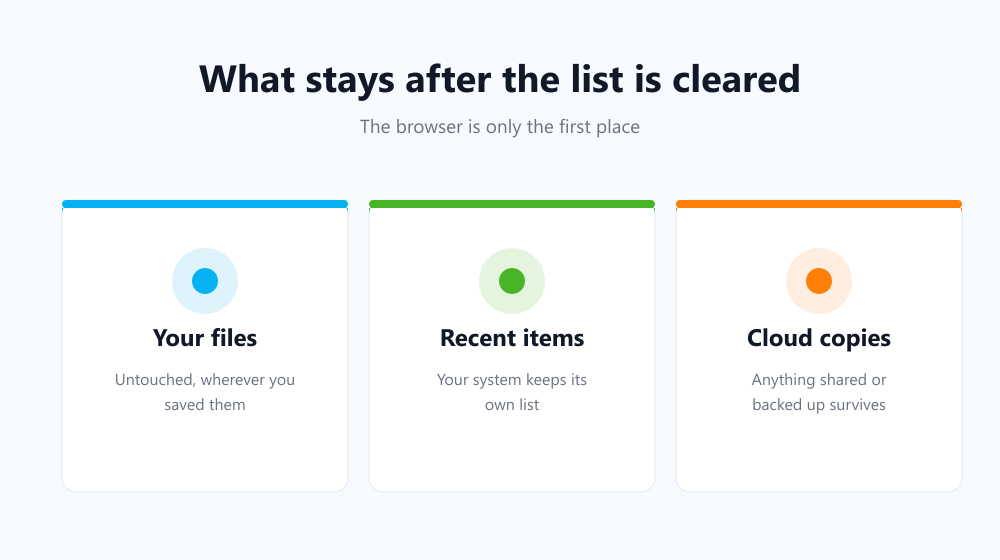
Quite a lot, by design. The files are still in place, and so is anything your operating system remembers about them — recent-files lists, thumbnail previews and search indexes all live outside the browser. If your goal is that nobody can tell what you downloaded, the browser is only the first of several places to look.
- The files themselves, in Downloads or wherever you saved them.
- Your operating system’s recent documents list.
- Thumbnails and previews generated by the file manager.
- Any copy you moved, shared or backed up to cloud storage.
How do I delete the files as well?
Open the downloads page in your browser, and next to each item use Show in folder to jump to the real file. Delete it there, then empty the Recycle Bin or Trash — until you do, it is still recoverable. Clearing the browser list afterwards removes the pointer that would have led anyone to it. Mozilla’s guide to managing downloaded files shows the same two-step idea in Firefox.
Doing the browser half automatically
The list rebuilds itself every time you save something, so a one-off clean-up does not hold for long. Auto History Wipe can wipe download history alongside your pages, cache and cookies on startup or on a schedule, which keeps the browser side tidy without you revisiting it. The files stay exactly where you put them — that part is always yours to decide.
Frequently asked questions
Will my downloads disappear if I clear everything?
No. Even ticking every box in the dialog removes only browser records. No browser deletes your saved files as part of clearing browsing data.
Why does the downloads page still show old entries?
Because download history is its own tick box. Clearing pages does not touch it — you have to select it explicitly.
Does this differ between Chrome, Edge and Firefox?
Not in substance. All three separate the list from the files, and all three offer the two as distinct options. For the browser-by-browser steps, see what happens when you clear browsing data.
So clearing history is safe for your files by design: it edits the browser’s memory, not your disk. If you want a download gone for good, delete the file first and the record second — and put the record half on a schedule so it never piles up again.