 Auto History Wipe
Remove Autofill Suggestions in Chrome (One or All)
Written by Jem Jack · Published October 9, 2026
You start typing in a form or the address bar, and Chrome helpfully suggests something you’d rather nobody saw: an old address, a typo’d email, or a site you visited once. You don’t have to wipe everything to get rid of it. Here’s how to remove autofill suggestions in Chrome, one at a time or all at once, and how to stop new ones piling up.
Two kinds of suggestions
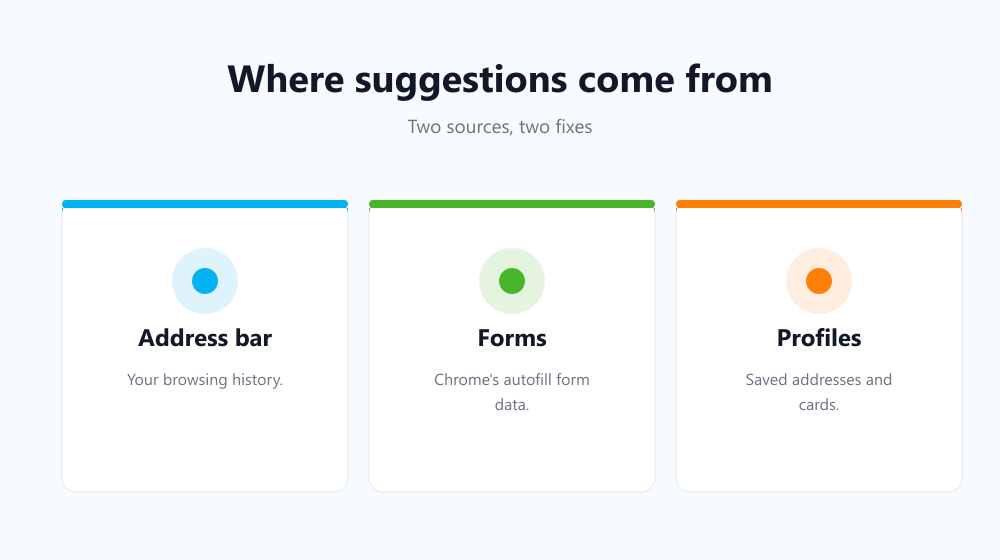
Chrome suggests things from two different places, and each is removed differently:
- Address bar suggestions come mostly from your browsing history.
- Form suggestions, such as names, emails and addresses, come from Chrome’s autofill data.
Remove one suggestion: Shift + Delete
This works for both kinds and is the quickest fix:
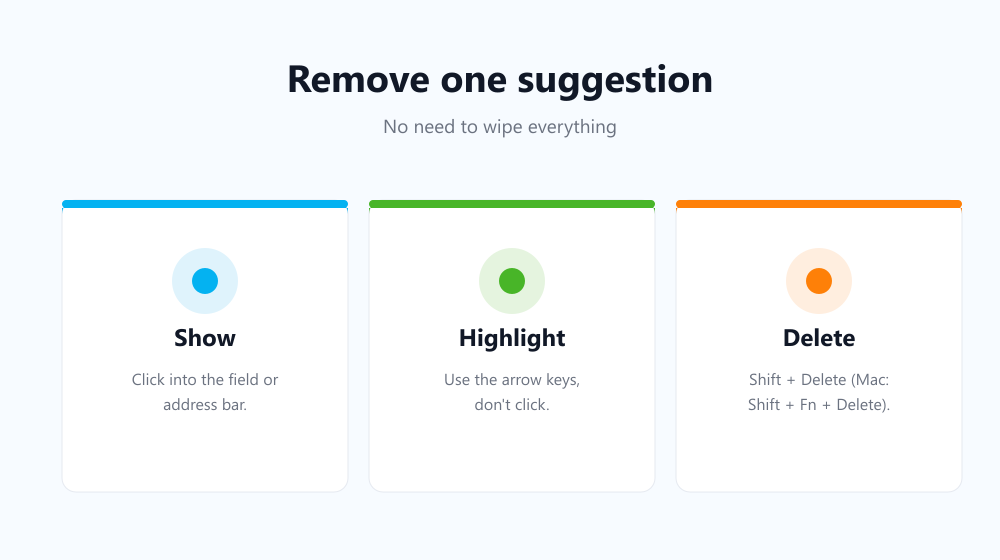
- Click into the field or address bar so the suggestion list drops down.
- Use the arrow keys to highlight the entry. Don’t click it.
- Press Shift + Delete on Windows or Linux, or Shift + Fn + Delete on a Mac.
The entry vanishes and everything else stays. In the address bar, newer Chrome versions also show an X next to history suggestions when you hover over them.
Remove saved addresses and cards
Full addresses and payment cards are stored as separate profiles, and Shift + Delete doesn’t touch them. Go to Settings, then Autofill and passwords, then Addresses and more or Payment methods. Click the three dots next to an entry and choose Delete. Google’s autofill help page covers the same settings.
Clear all autofill suggestions at once
To start fresh, press Ctrl + Shift + Delete, choose All time and tick Autofill form data (click More if you don’t see it). To clear address bar suggestions too, also tick Browsing history. Leave Passwords unticked unless you really want your saved logins gone.
| What you want gone | Best method |
|---|---|
| One embarrassing suggestion | Highlight it, then Shift + Delete |
| An old saved address or card | Settings, then Autofill and passwords |
| All form suggestions | Clear “Autofill form data” |
| All address bar suggestions | Clear “Browsing history” |
| Future suggestions | Turn off saving, or auto-clear on a schedule |
Stop new suggestions building up
You can turn off Save and fill addresses and Save and fill payment methods in the Autofill settings. That stops new profiles being stored, but Chrome still remembers what you type into ordinary form fields.
For a hands-off approach, Auto History Wipe can clear form data and browsing history automatically on start-up or on a schedule. The suggestion list never grows long enough to embarrass you. If address bar suggestions are the issue, auto-deleting your Chrome history takes care of those too.
Frequently asked questions
Why does a suggestion come back after I delete it?
If sync is on, another device may still have it. It can also return if the entry exists in your history and you visit the page again. Clear it on each synced device, or clear history as well.
Will this remove my saved passwords?
No. Passwords are separate. Neither Shift + Delete nor clearing “Autofill form data” touches them.
Does this work in Edge?
Yes. Shift + Delete works the same in Edge, and saved addresses are kept in Edge’s Personal info settings.
How do I remove autofill suggestions on Android?
In Chrome for Android, long-press a suggestion in the address bar and choose Remove, or clear “Autofill form data” under History, then Delete browsing data.
A single stray entry takes two seconds to fix. Once you know how to remove autofill suggestions, one at a time or all together, Chrome only suggests what you actually want it to.