 Auto History Wipe
Why Deleted History Comes Back — and How to Stop It
Written by Jem Jack · Published October 30, 2026
You cleared everything, closed the browser, opened it the next morning — and the list was back. It feels like the delete button lied, but it almost never did. When deleted history comes back there is usually a second copy somewhere putting it there again, and once you know which one, the fix takes a minute.
The usual culprit: sync
If you are signed in with sync turned on, your history is not stored on one machine — it is a shared list held in your account and mirrored to every device. Clearing it on the laptop tells the account to delete it, and that normally propagates everywhere. But if another device was offline, switched off, or running an old session, it can push its own copy back up when it reconnects.
The result looks exactly like a failed deletion. It is really one device disagreeing with the others about which version is current.
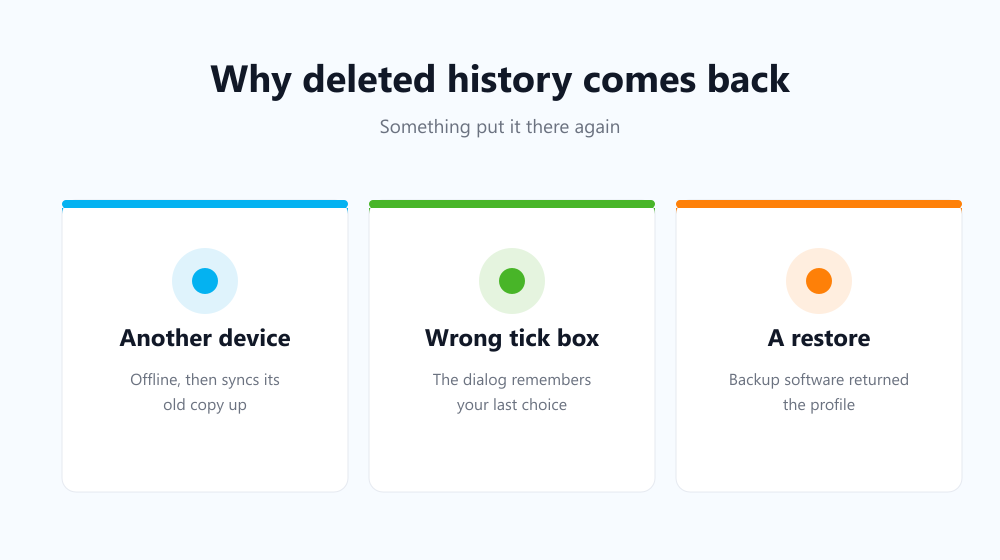
Four reasons deleted history comes back
| Cause | What you see | Fix |
|---|---|---|
| Another synced device | Old entries reappear after restart | Clear while every device is online |
| A restored profile | Everything returns at once | Check backup or restore software |
| A managed profile | Settings revert on login | Ask whoever manages the device |
| Nothing was ticked | Only cache or cookies were cleared | Tick Browsing history explicitly |
That last row is more common than any of the technical explanations. The dialog remembers your previous selection, so if you once cleared only cached files, that is all it will clear next time unless you look.
Making the clear-out stick
- Open your browser’s clear-data dialog and confirm Browsing history is actually ticked.
- Set the range to All time rather than the last hour.
- Have your other signed-in devices open and online while you do it.
- Restart the browser and check the list before you assume it worked.
If your devices should not share a list in the first place, turn history sync off. Google’s sync settings documentation explains how to choose what is shared and what stays local.
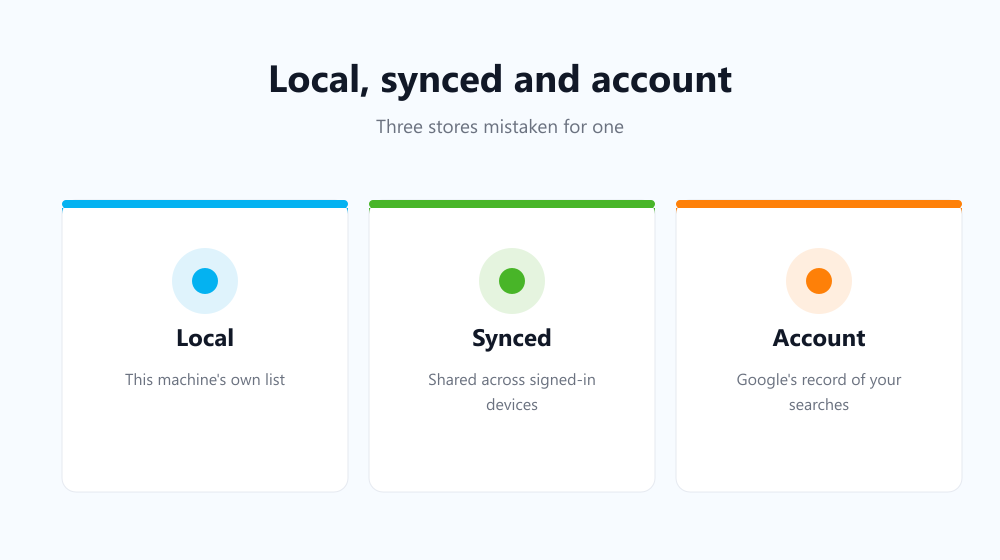
The copy that never was in the browser
There is one more reappearance that is not really a reappearance. Searches you ran while signed in to Google are kept in your account, and they still show up as suggestions after the browser has been wiped clean. No browser setting removes those — the routine is in auto delete Google search history.
Stop it building up again
The deeper problem is that clearing by hand only works on the days you remember. Auto History Wipe wipes history, cache and cookies at every browser startup or on a timer you choose, so the list never gets long enough to matter, whatever another device decides to sync.
Frequently asked questions
Does signing out undo my deletion?
No, but it can make an old local copy visible again, because signing out stops the account version from overwriting what is on that machine.
Why do old sites still autocomplete in the address bar?
Those suggestions come from several sources, including bookmarks and typed URLs — see how to remove autofill suggestions in Chrome.
Could this mean someone restored a backup?
It can, though a synced device explains it far more often. If the whole profile returned, including bookmarks and settings, look at backup software first.
In nearly every case where deleted history comes back, the browser did what you asked and something else undid it. Tick the right box, clear with your devices online, and let it run automatically so the question stops arising at all.