 Auto History Wipe
How to Clear History on Brave (and Automate It)
Written by Jem Jack · Published October 16, 2026
Brave blocks a lot of trackers out of the box, but it still keeps your browsing history, cookies and cache like any other browser. The good news is that it also gives you more control than most. This guide shows how to clear history on Brave by hand, how to make it clean up every time you close it, and how to put the whole job on autopilot.
How to clear history on Brave (desktop)
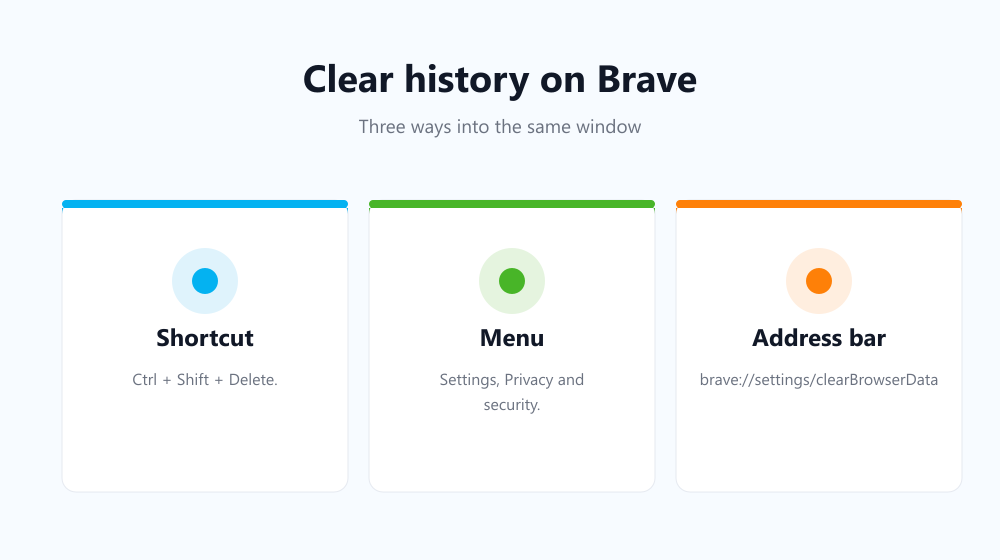
- Press Ctrl + Shift + Delete (Cmd + Shift + Delete on a Mac), or open the menu, then Settings, then Privacy and security, then Clear browsing data.
- Choose a Time range. “All time” gives a full clean.
- Tick Browsing history, plus Cookies and other site data and Cached images and files if you want those gone too.
- Click Clear data.
You can also jump straight to the page by typing brave://settings/clearBrowserData in the address bar.
Clear data every time you close Brave
Brave has a feature most Chromium browsers lack: an On exit tab in the Clear browsing data window. Open it, tick the data types you want removed, and save. From then on, Brave wipes them whenever you close the browser. There’s a catch: it only runs once every Brave window, across all profiles, is closed. If one stays open in the background, nothing is cleared. Brave’s own issue tracker documents this behaviour.
On your phone
On Android and iOS, open Brave’s menu, then Settings, then the privacy section, and choose Clear browsing data. Brave’s mobile apps also offer an option to clear chosen data when you exit the app. Look for it in the same privacy menu.
Compare your options
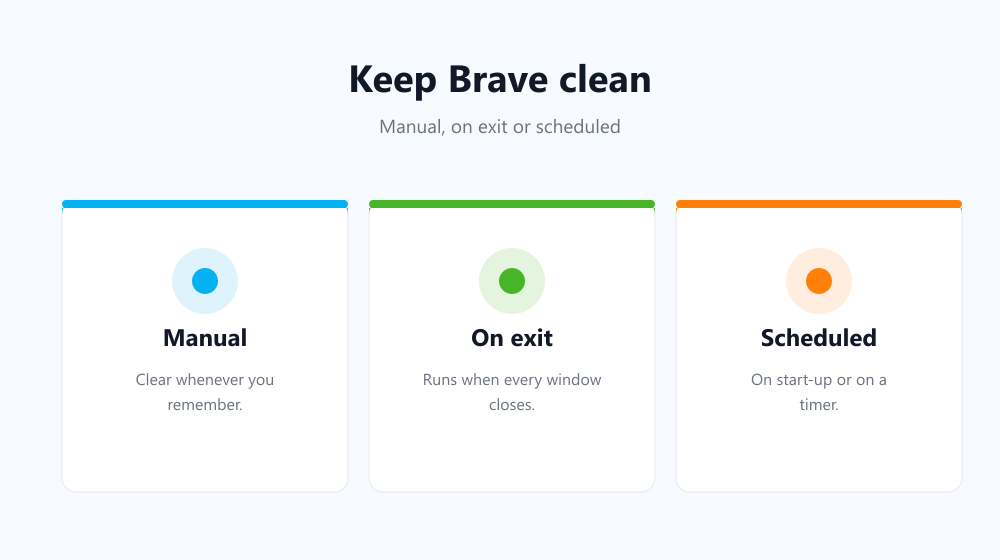
| Method | When it runs | Keeps chosen logins? |
|---|---|---|
| Clear browsing data (manual) | When you remember | Only if you untick cookies |
| On exit tab | When every Brave window closes | No |
| Private window | Continuously, for that window | No |
| Clean-up extension | On start-up or on a timer | Yes, via whitelist and bookmarks |
Automate it with an extension
Because Brave runs extensions from the Chrome Web Store, you can add Auto History Wipe to it. It clears history, cookies, cache and downloads every time Brave starts, or every hour, every 12 hours, daily or weekly. It doesn’t depend on every window being closed. Whitelisted and bookmarked sites keep their cookies, so you stay signed in where you want. The same approach works in other Chromium browsers; see our guides for Edge and Chrome.
Frequently asked questions
Does Brave delete history automatically?
Not by default. Brave keeps history until you clear it, unless you set up the On exit option or use private windows.
Why didn’t Brave clear my data on exit?
Almost always because a Brave window, often in another profile, was still open. On-exit clearing only runs after every window is closed.
Do Brave Shields replace clearing history?
No. Shields block trackers and ads while you browse, but they don’t delete the history, cookies and cache stored on your device.
Can I delete history for just one site?
Yes. Open brave://history, search for the site’s name, tick the entries you want gone and click Delete. The rest of your history stays untouched.
Does a Brave private window save history?
No. Private windows don’t keep history, cookies or cache after you close them. Private windows with Tor also route your traffic through the Tor network, which hides your IP address from sites, at the cost of slower browsing.
It takes a minute to clear history on Brave by hand and five to set it up so you never have to again. Pick the on-exit option or a scheduled clean-up, whichever fits how you actually use your browser.