 Auto History Wipe
How to Clear History on Opera (All Devices)
Written by Jem Jack · Published November 6, 2026
Opera ships with a VPN and an ad blocker, which leads a lot of people to assume it is not keeping a record. It is — the same list of pages as any other browser. Here is how to clear history on Opera on desktop and on the phone, and what those built-in privacy features genuinely cover.
Clear history on Opera for desktop
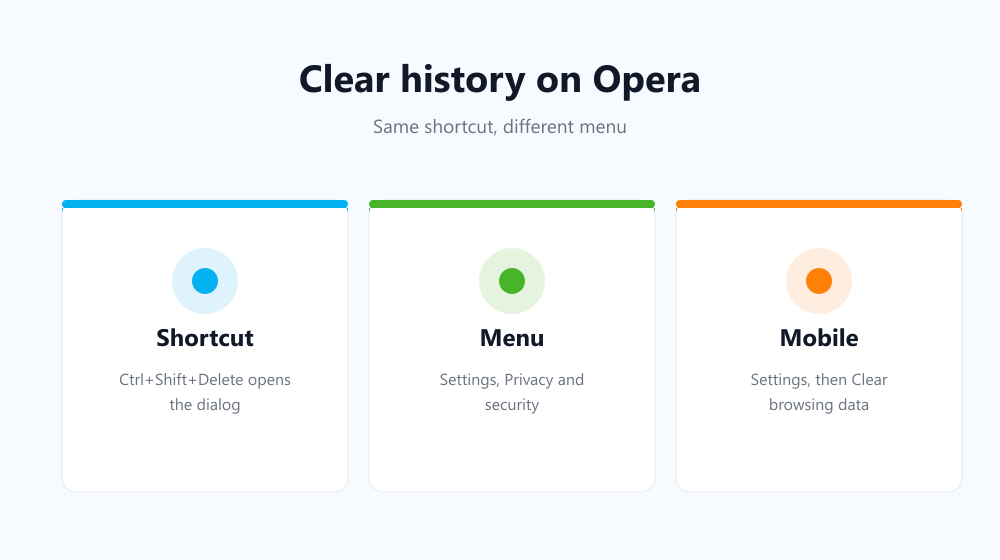
Press Ctrl+Shift+Delete (Cmd+Shift+Delete on a Mac) to open the clear-data dialog directly. If you would rather navigate there, open the Opera menu, choose Settings → Privacy & security → Clear browsing data.
- Pick a time range — All time clears the lot.
- Tick Browsing history; add cookies and cached images if you want them gone too.
- Confirm, then restart the browser to check the list is empty.
Opera is built on Chromium, so the dialog will look familiar if you have used Chrome or Edge. The wording differs slightly; the tick boxes do the same jobs.
Opera for Android and iOS
- Tap your profile or the Opera icon, then Settings.
- Scroll to Clear browsing data.
- Choose what to remove and confirm.
As on every mobile browser, there are no extensions and no scheduling, so the phone side stays a manual job. If your Opera account syncs the two, clearing on the desktop will normally clear the phone as well — and if you would rather keep them separate, turn synchronisation off before you start. It is worth checking which state you are in once, because otherwise a tidy-up on one device quietly rewrites the other.
Does Opera’s VPN hide your history?
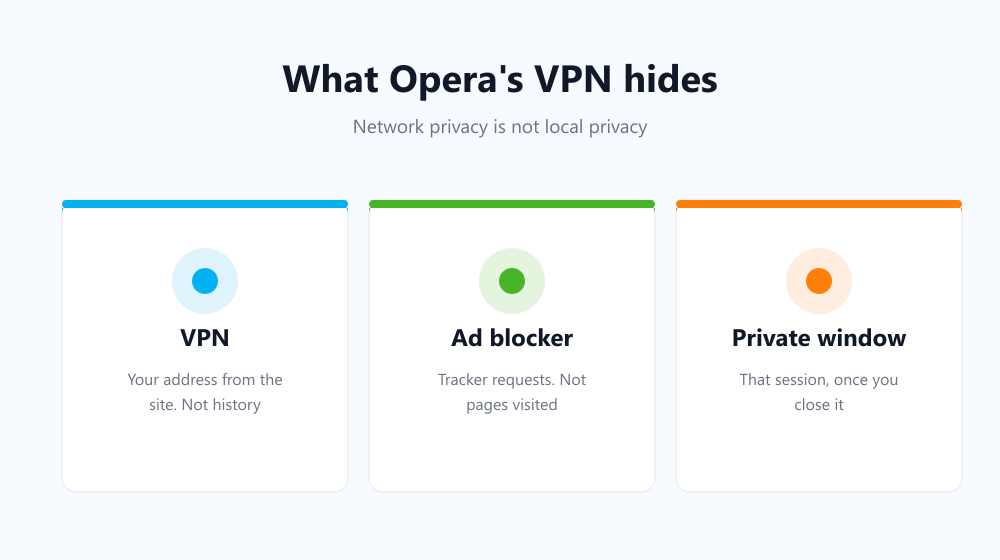
No, and this is the part worth being clear about. The built-in VPN is a proxy for your browser traffic: it changes which server the site sees you arriving from. It does not stop Opera writing down the pages you opened on your own machine. Anyone who opens your laptop still sees the list.
| Feature | What it hides | What it does not |
|---|---|---|
| Built-in VPN | Your address from the site | Your local history list |
| Ad blocker | Ad and tracker requests | Pages you visited |
| Private window | That session, after you close it | What normal windows already saved |
It is the same confusion people have about Incognito, and it is worth reading once properly: does Incognito mode keep you private.
Making it automatic on the desktop
Opera runs Chrome extensions, so the desktop half does not have to stay manual. Auto History Wipe installs from the Chrome Web Store and clears history, cache and cookies at startup or on a schedule, with a whitelist for the sites you want to stay signed in to. Opera’s own security and privacy documentation covers what the browser itself offers.
Frequently asked questions
Does clearing sign me out of everything?
Only if you tick cookies. History alone leaves every session intact — the distinction is covered in does clearing cache log you out.
Can I install Chrome extensions in Opera?
Yes. Opera supports them directly; you may see a one-time prompt allowing installs from the Chrome Web Store.
Does Opera GX work the same way?
Yes. The gaming edition uses the same Chromium base, the same keyboard shortcut and the same clear-data dialog, so every step on this page applies to it without changes.
Knowing how to clear history on Opera takes one shortcut, but the useful part is separating the two privacy problems: the VPN handles what the network sees, and clearing handles what your own computer remembers. Automate the second and the first keeps doing its own job.