 Auto History Wipe
Shared Computer Privacy: How to Leave No Trace
Written by Jem Jack · Published October 14, 2026
A family laptop, an office desk PC, a hotel business centre: every shared machine remembers more than you’d think. Your searches show up as suggestions, your accounts stay signed in, and your downloads sit in a folder anyone can open. Good shared computer privacy comes down to a few habits and one or two settings. Here’s the checklist.
What a shared computer remembers about you
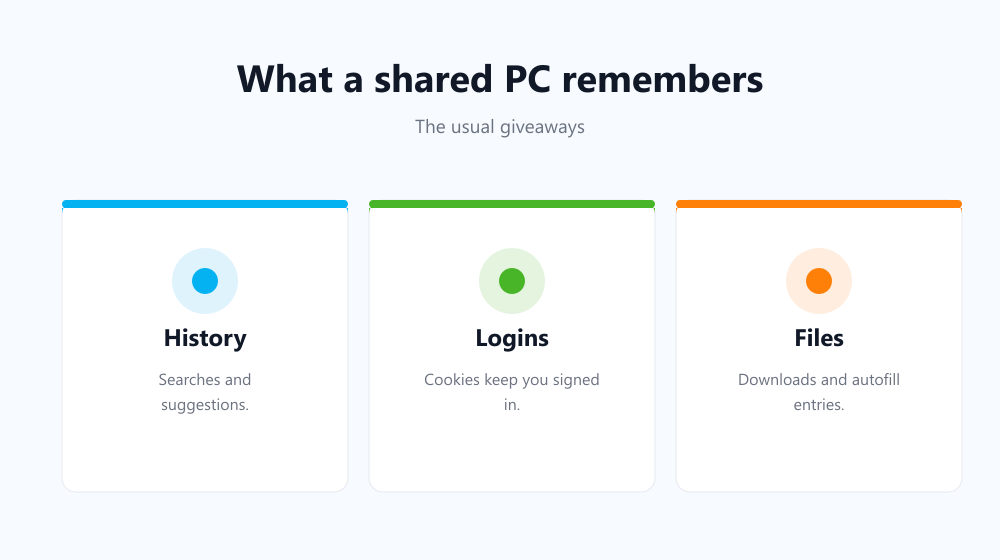
- Browsing history and address bar suggestions.
- Logins kept alive by cookies, sometimes for months.
- Autofill entries: names, emails, addresses, even card details.
- Saved passwords, if you ever clicked “Save”.
- Downloaded files and recently opened documents.
Shared computer privacy at home
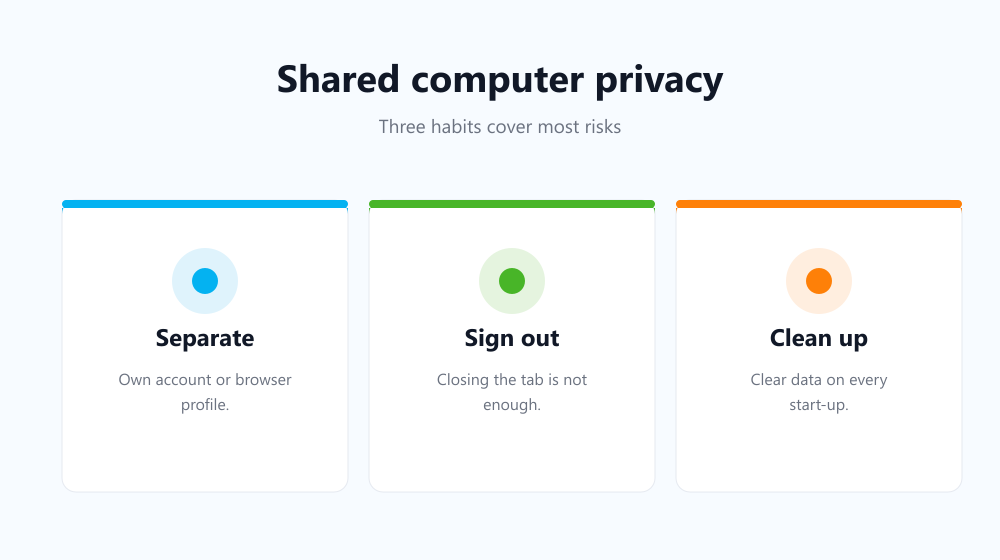
The best fix at home is separation. Give each person their own operating system account (Windows and macOS both make this easy), or at least their own browser profile. Each profile has its own history, cookies, passwords and bookmarks, so nobody sees anyone else’s. Google explains how in its Chrome profiles guide.
When a visitor needs the computer for a few minutes, open guest mode instead of handing over your profile. Not sure which private option to use? See guest mode vs Incognito.
At work and on public computers
On a library, hotel or office PC you can’t set up profiles, so treat every session as temporary:
- Browse in guest mode or a private window.
- Never save passwords. Click “Never” when the browser offers.
- Sign out of every account before you leave; closing the tab isn’t enough.
- Delete downloads and empty the recycle bin.
- Close the browser completely so private-session data is discarded.
Remember that work networks can log the sites you visit whatever the browser does. Private windows only hide activity from the next person at the desk.
Risks and fixes at a glance
| Risk | Fix |
|---|---|
| Others see your history and suggestions | Own profile, or clear history regularly |
| You stay signed in after you leave | Sign out; clear cookies |
| Passwords saved on the machine | Never save on shared PCs; use a password manager on your phone |
| Card and address autofill | Delete saved entries; turn off saving |
| Files left in Downloads | Delete them before you log off |
Make clean-up automatic
Habits slip. Someone forgets to sign out, or a private window never gets used. On a family or office computer, an automatic clean-up is the safety net. Auto History Wipe clears history, cookies, cache, downloads and form data every time the browser starts, or every hour, so whatever the last person left behind is gone when the next person opens it. Sites you bookmark or whitelist keep their cookies. Our guide on removing autofill suggestions covers the entries already stored.
Frequently asked questions
Is Incognito enough on a shared computer?
For a single session, mostly, as long as you close every private window afterwards. It won’t remove downloads, and it doesn’t stop the network from seeing your activity.
Should I save passwords on a family computer?
Only in your own browser profile or your own operating system account, ideally with a lock screen. Never in a shared profile.
How do I check whether I left anything behind?
Open the history page (Ctrl + H), check the Downloads folder, and visit the sites you used to confirm you’re signed out.
What is the single most important shared computer privacy step?
Separate profiles. When everyone has their own, most of the other risks shrink dramatically.
Shared computer privacy isn’t about paranoia; it’s about not leaving your life on someone else’s screen. Separate your profile, sign out, and let an automatic clean-up catch whatever you forget.